
Themes
Sero stores the selected theme and light, dark, or system mode in the active profile's layout state. Custom theme presets are also profile-scoped.
Selecting a theme
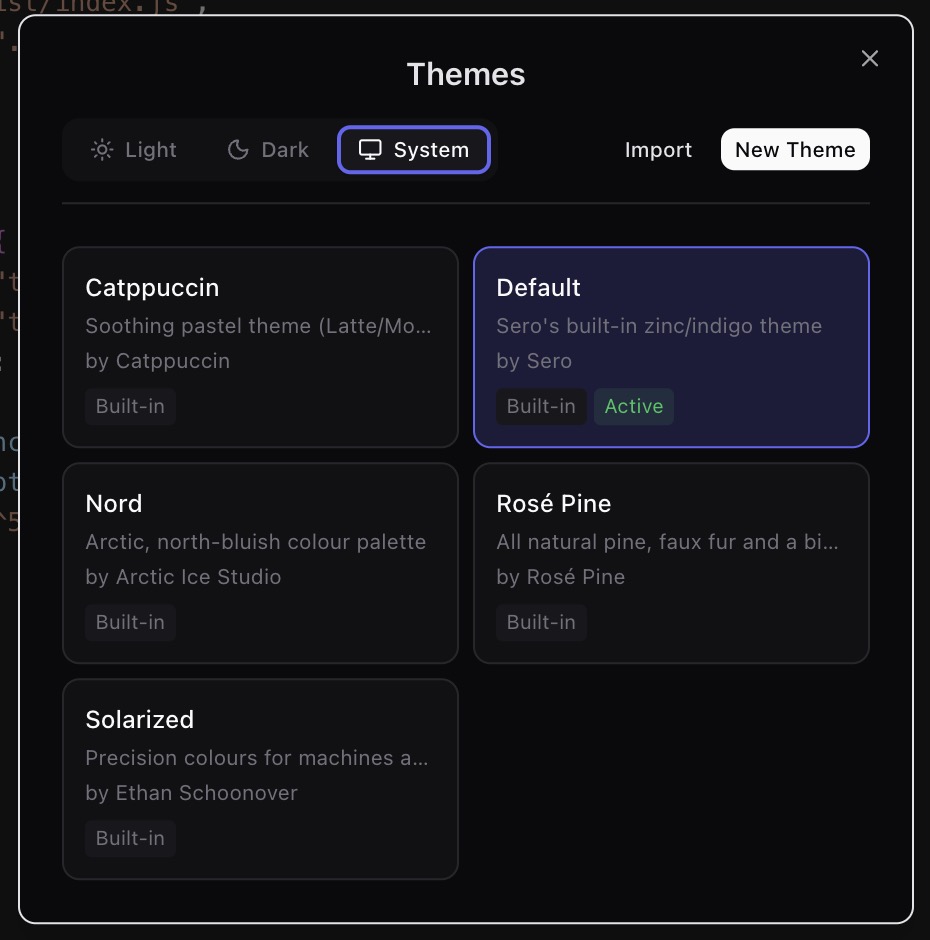
Open Themes from the command menu. Select Default or a saved preset. Use the mode control to select light, dark, or system mode. Sero applies the selection immediately and restores it when you next open the profile.
Editing a theme
Select the preset that you want to change before you open its editor. Use New Theme when you want to create a custom preset. The editor previews changes while it is open and saves custom preset data through the theme service.
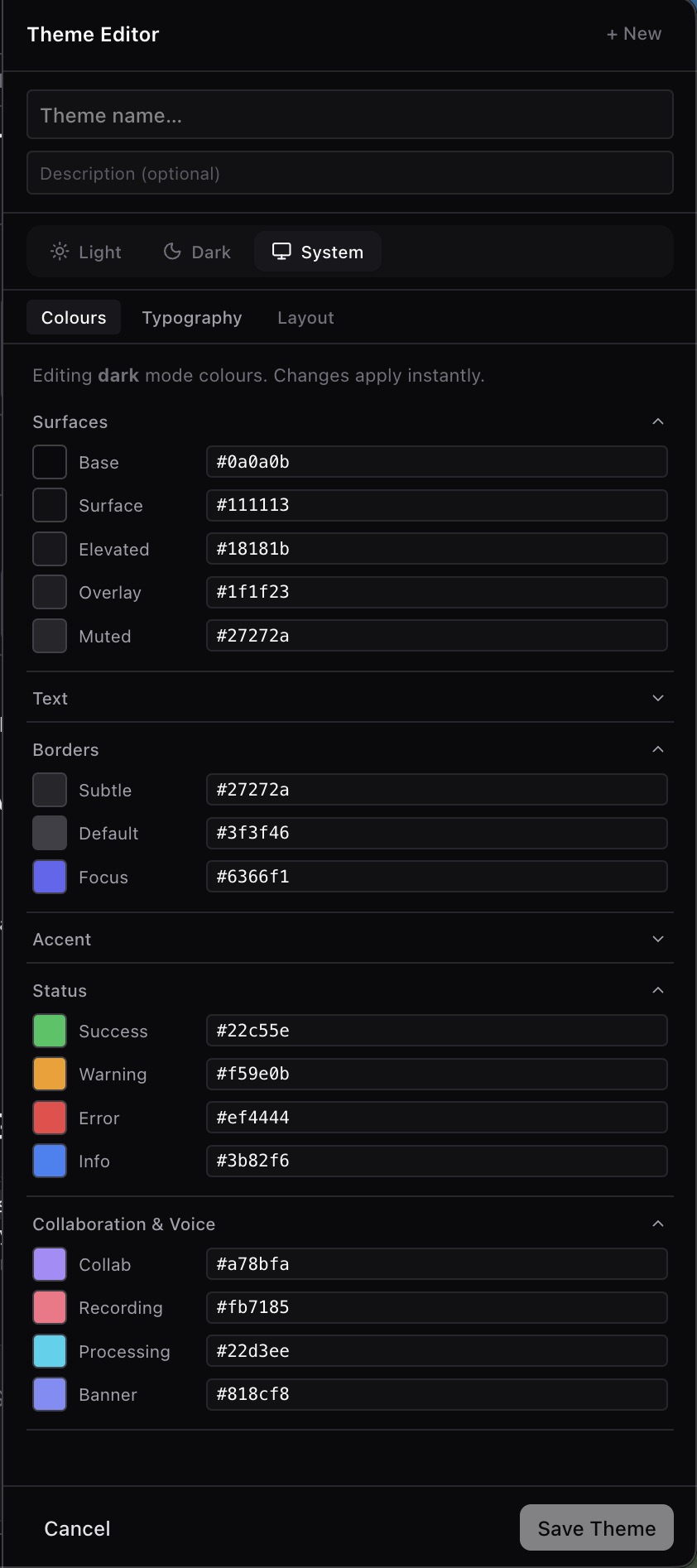
Color tokens control the shell and plugin surfaces that use those tokens.
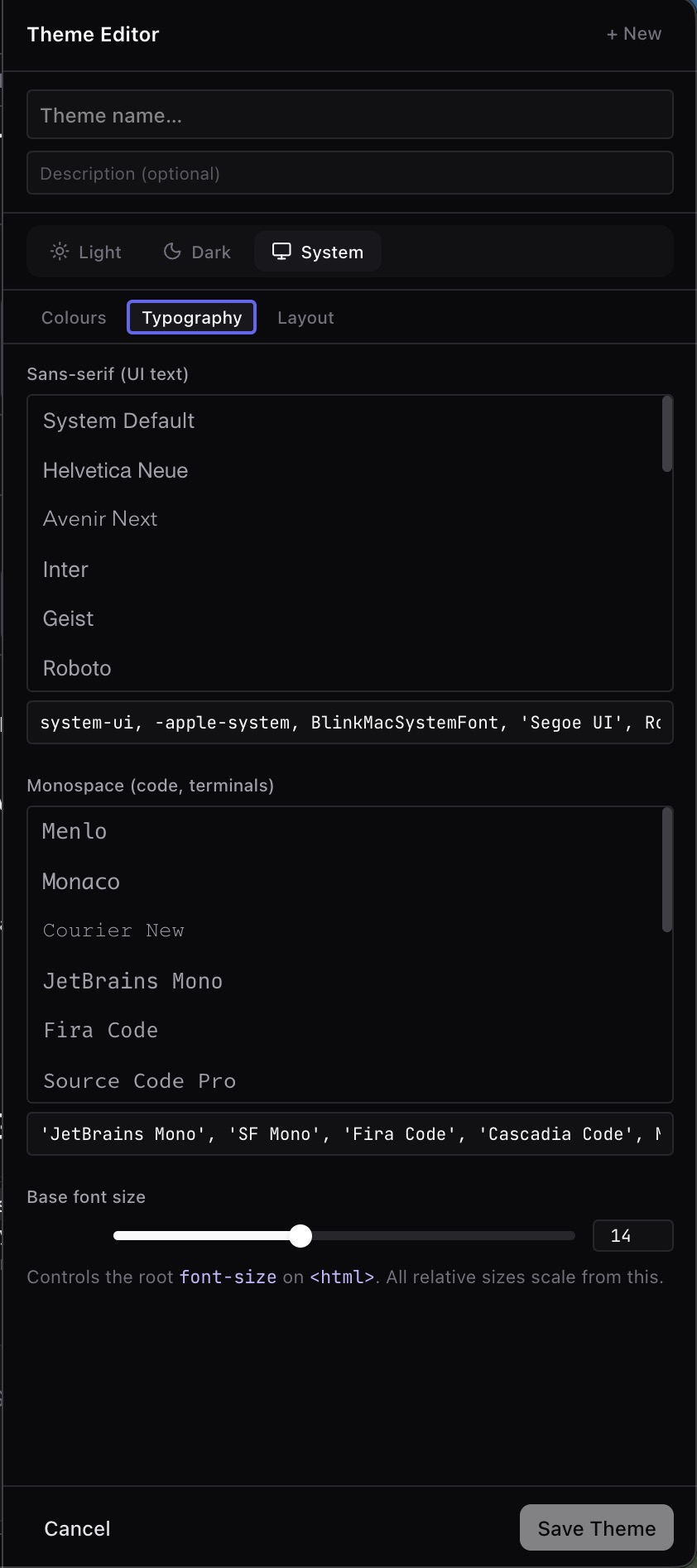
The Layout tab can make the Sero window translucent. Enable Glass background to preview these controls:
- Window tint controls the theme background fill.
- Sidebar tint and Panel tint control their own background fills.
- Selection fill controls the neutral fill used by selected rows and raised controls.
- Border strength controls panel and control outlines.
- Desktop blur, on macOS, controls the blur radius from 0 to 64 pixels. 0px removes blur. Blur does not add a system material tint.
- Windows backdrop, on Windows 11 22H2 or later, selects Acrylic, Mica, or Tabbed. Windows controls the backdrop's blur and tint.
The tint, selection, and border sliders range from 0% to 100%. They work independently and save with the theme. To remove Sero's background fills, set Window tint, Sidebar tint, and Panel tint to 0%. Keep a small tint if text is hard to read over your wallpaper.
Dialogs and menus stay opaque. On macOS, glass stays active when another app has focus. Linux retains solid backgrounds because Sero does not have a portable native blur implementation for its compositors. Native blur errors appear in the editor.
Check the preview before you close the editor. Confirm that text, borders, and status colors remain clear in the selected mode.
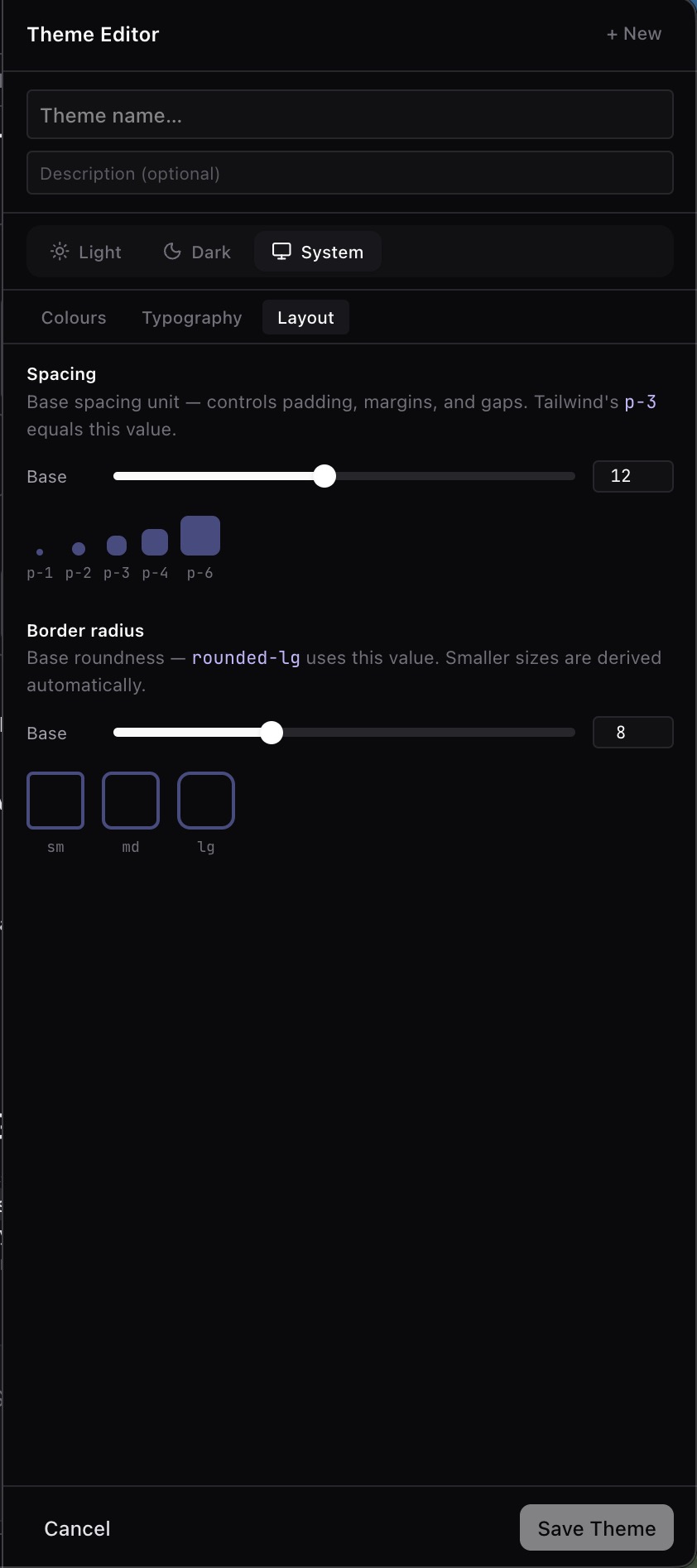
Checking theme coverage
Sero has a local styleguide app for testing theme behaviour away from the main desktop shell and plugin runtime:
Use the Diagnostic Swap preset to catch token mistakes. Brand accents should use primary or secondary brand tokens. Success, warning, error, and code colours should only change the UI they describe.