
Rooms
A Room gives one task to a temporary team of Sero agents. Each member has a role. Members can work at the same time, share findings, and change how they divide the task.
Use a Room when a task needs several roles or points of view. Use a Workflow when Sero can follow a plan of steps instead. Orchestrator explains the difference.
Before you start
This tutorial uses Meridian, a small example project for processing orders and payments. Its tests reproduce three separate problems:
- splitting an order total can lose one cent;
- two payments at the same time can overwrite each other;
- retrying a failed payment can charge the customer more than once.
Before you continue:
-
Make sure Git and Node.js are available.
-
Clone the example project:
-
Open the cloned
meridian-orders-demofolder as a workspace in Sero. -
Open a terminal in the workspace and run:
Four tests fail. This is the expected starting state. Make sure the Git working tree has no changes before you continue.
The Room will investigate the three problems, repair them, and leave the changes in the workspace. It must ask you to choose the rounding rule for order totals.
1. Describe the task
Open Orchestrator from the app bar, select Rooms, then select New.
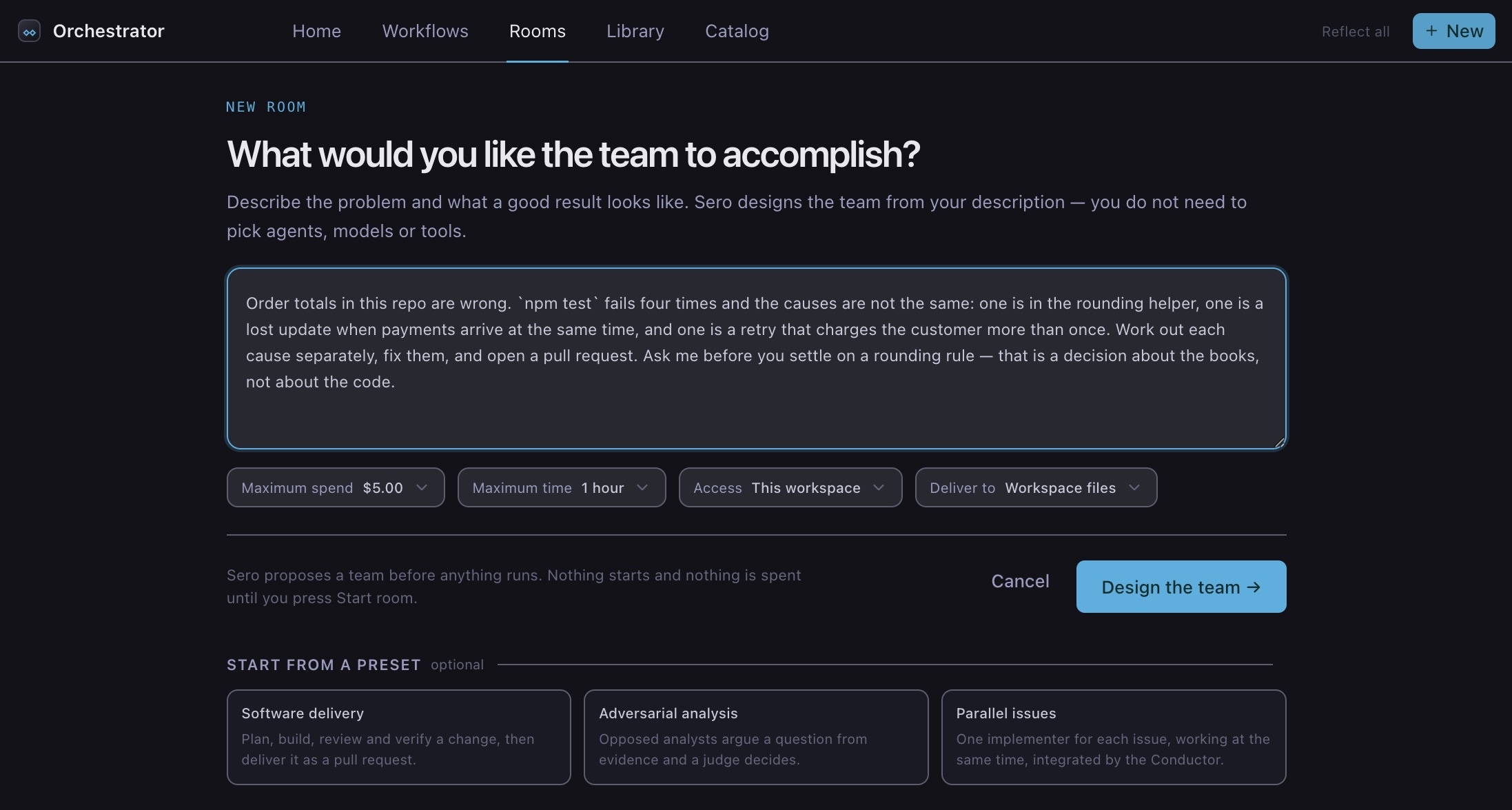
Enter this description:
The order and payment tests in this repository fail for three separate reasons. Investigate the rounding error, the lost payment update, and the repeated charge separately. Repair all three problems and run the complete test suite. Ask me to choose the rounding rule before you change it. Leave the completed changes in this workspace.
Set the Room limits:
- Maximum spend sets the highest model cost.
- Maximum time sets how long the team can work.
- Access sets which files and tools the team can use.
- Deliver to sets where Sero puts the result.
For this tutorial, use a maximum spend of $5.00, a maximum time of 1 hour, This workspace access, and Workspace files delivery.
Access settings are not a security sandbox. A member with shell, or command-line, access can run any command that your account can run. Use a Room only in a project that you permit it to change.
The presets below the form provide example descriptions for common tasks. Do not select one for this tutorial.
Select Design the team →.
2. Review the proposed team
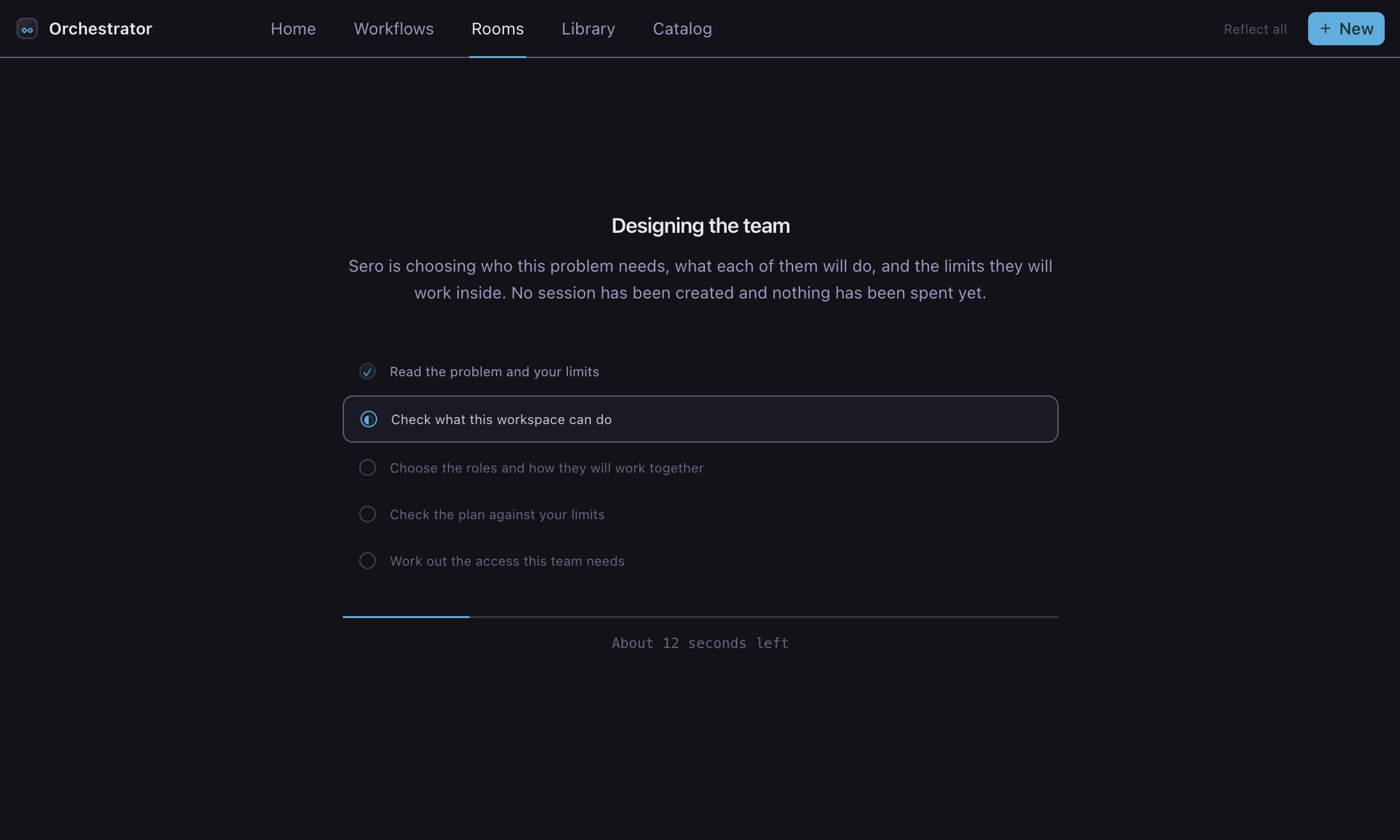
Sero calls a model to review the task, workspace, limits, and access and to propose a team. This planning call can incur a cost before you select Start. Member sessions and their execution costs start only after you select Start. While the call runs, the screen shows a spinner and the real time since the request, and never an estimate of how long it will take.
The proposal shows each member, its role, and the access it needs, and it says what designing the team cost.
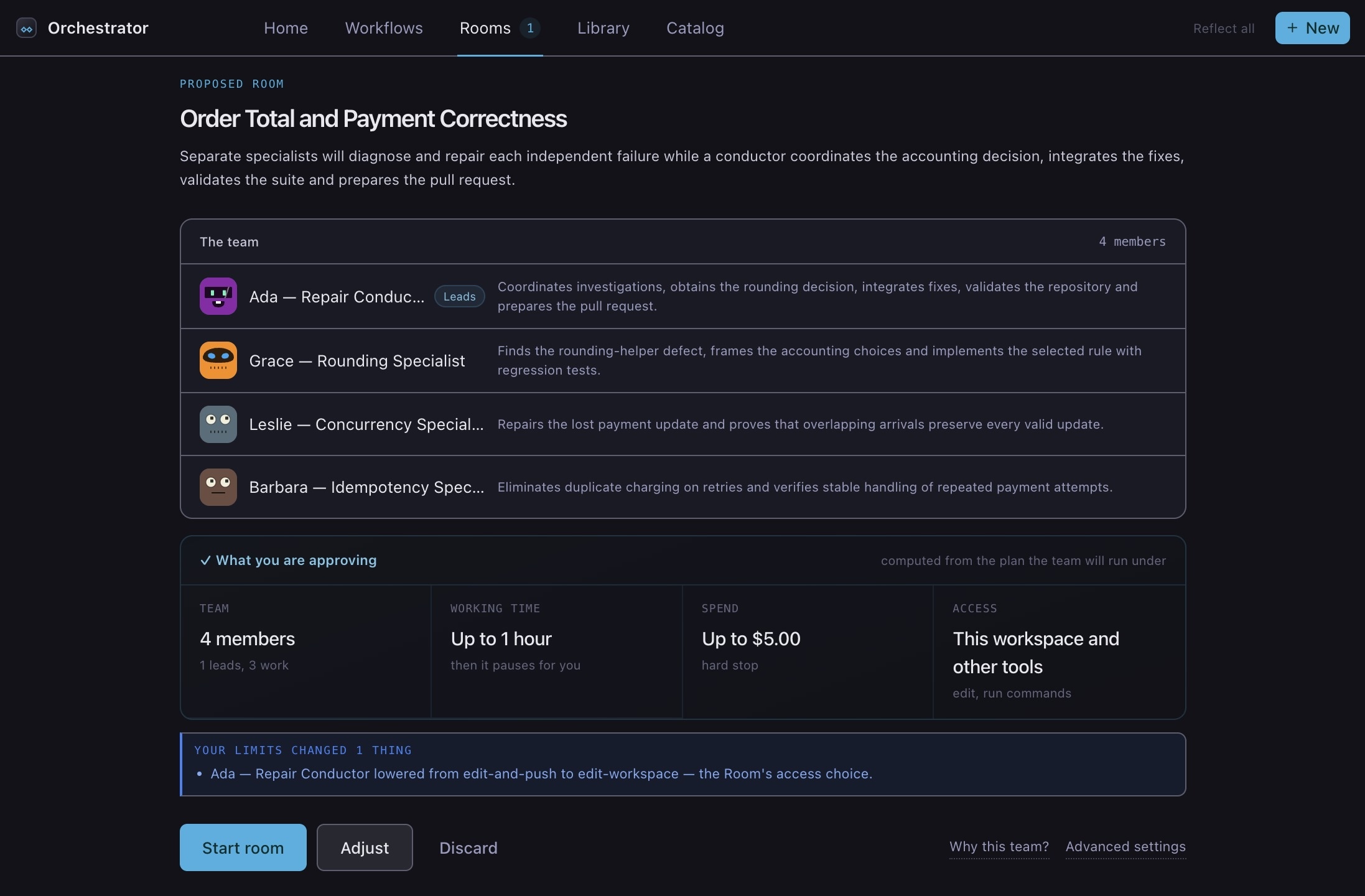
One member is the Conductor. The Conductor gives work to the other members, combines their findings, and decides when the task is complete.
In this example, Ada is the Conductor. Grace, Leslie, and Barbara each investigate one problem.
Review:
- each member's role and instructions;
- the number of members;
- the time and cost limits;
- the files and tools that each member can use;
- any requested access that exceeds the limits you selected.
Select Why this team? to read why Sero chose these roles. Select Advanced settings to see the tools available to each member.
3. Change the team
Select Adjust if you want a different team. Describe the change in plain language.
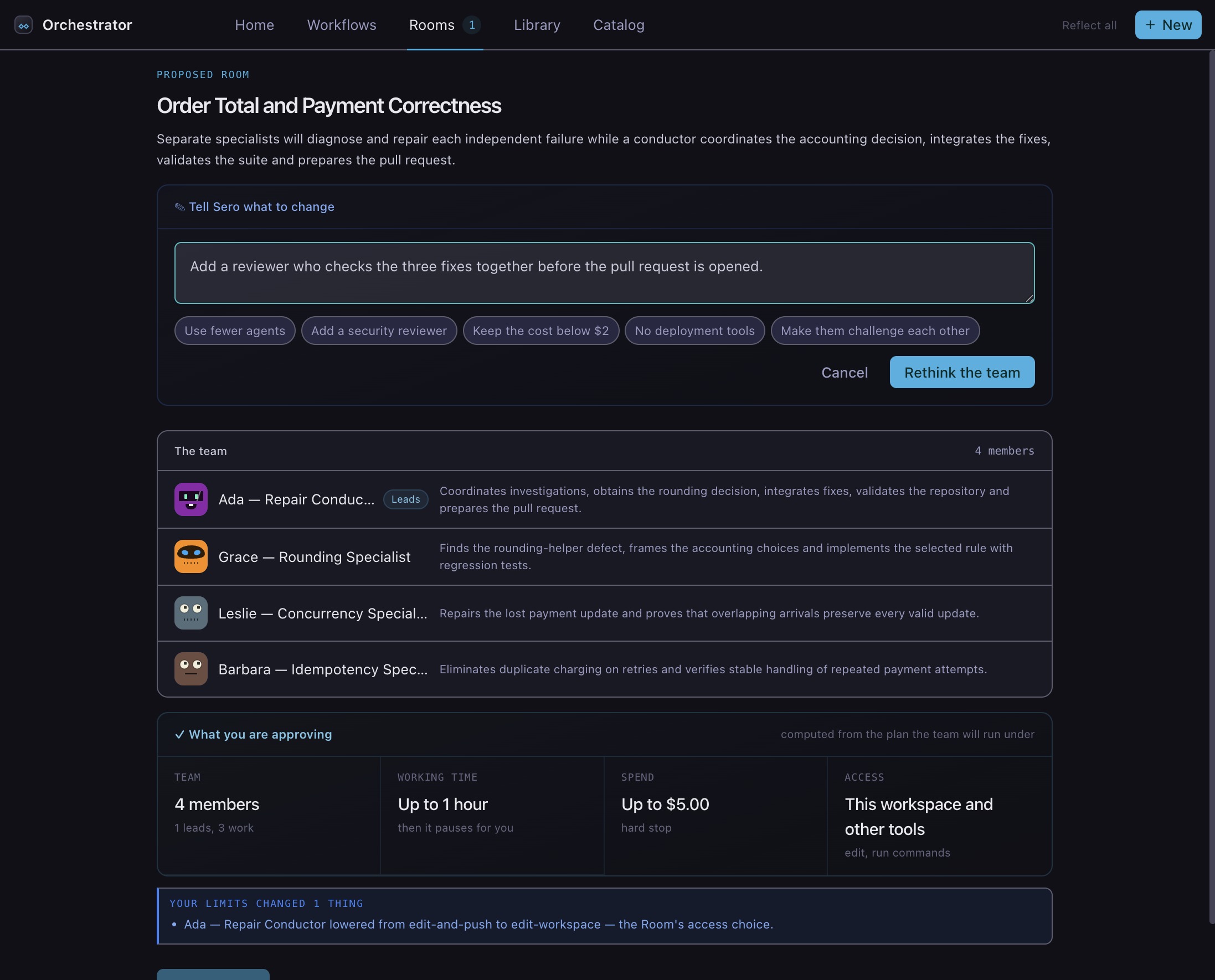
For this tutorial, enter:
Add a reviewer who checks all three repairs together before the Room finishes.
Select Rethink the team, then review the new proposal.
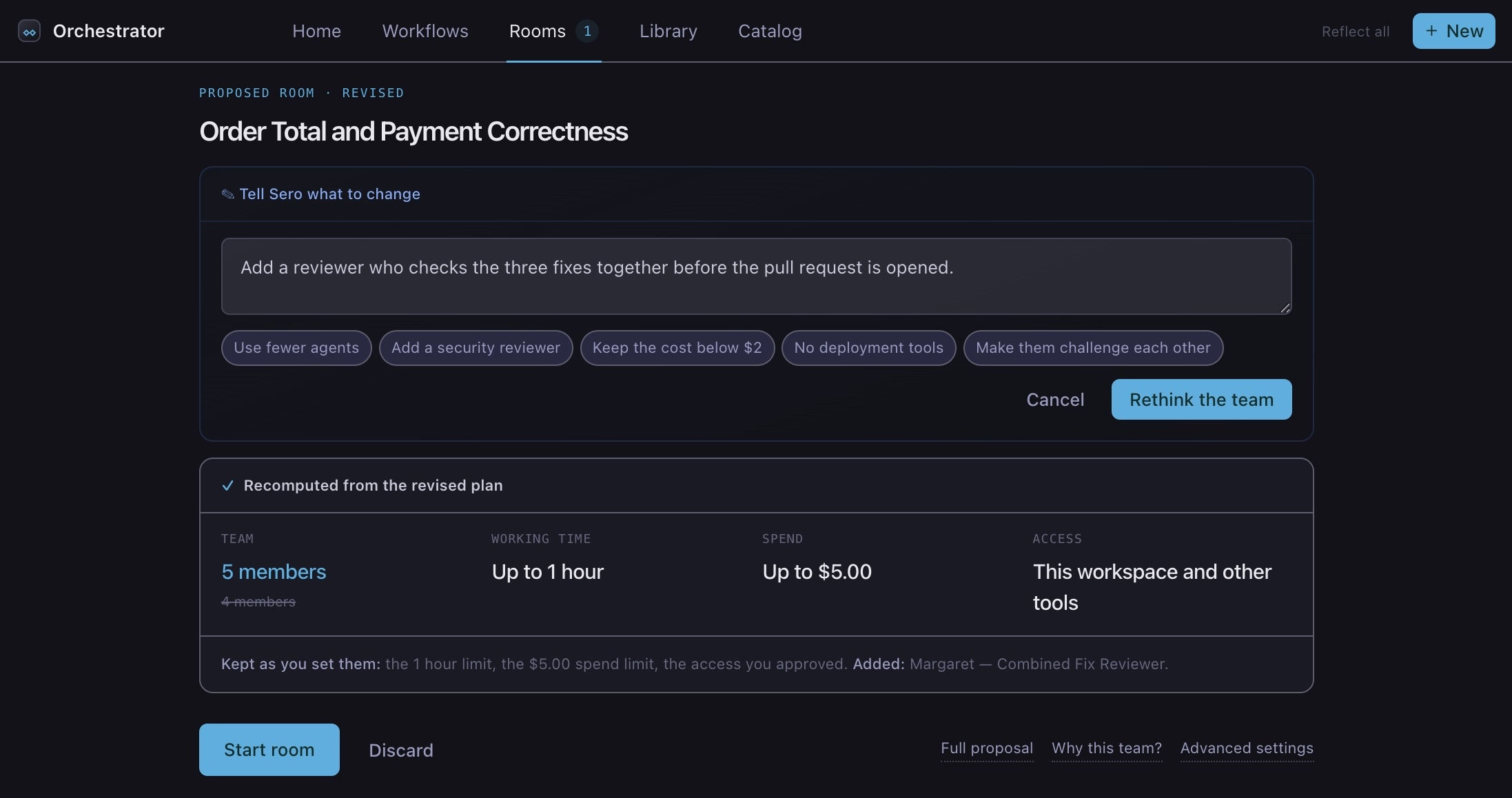
You can also ask for fewer members, different roles, stricter review, or another division of the task.
When the team is correct, select Start room. Sero asks for permission to create the agent sessions. Model costs start after the Room starts.
4. Follow the work
The Room screen shows the limits, team, and activity.
- The header shows elapsed time, cost, and the number of active members.
- The team list shows what each member is doing.
- The activity feed shows decisions, messages, and changes to the work.
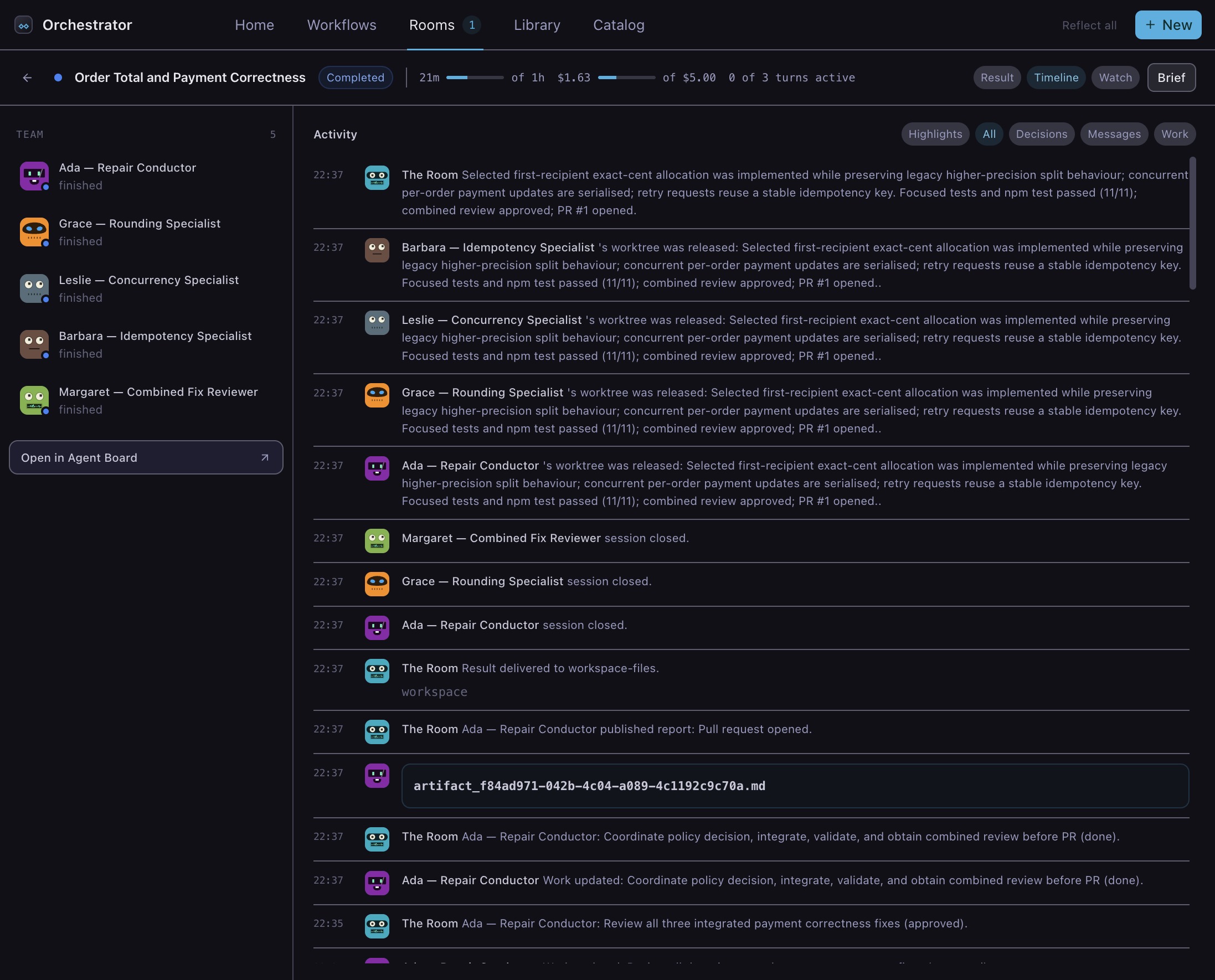
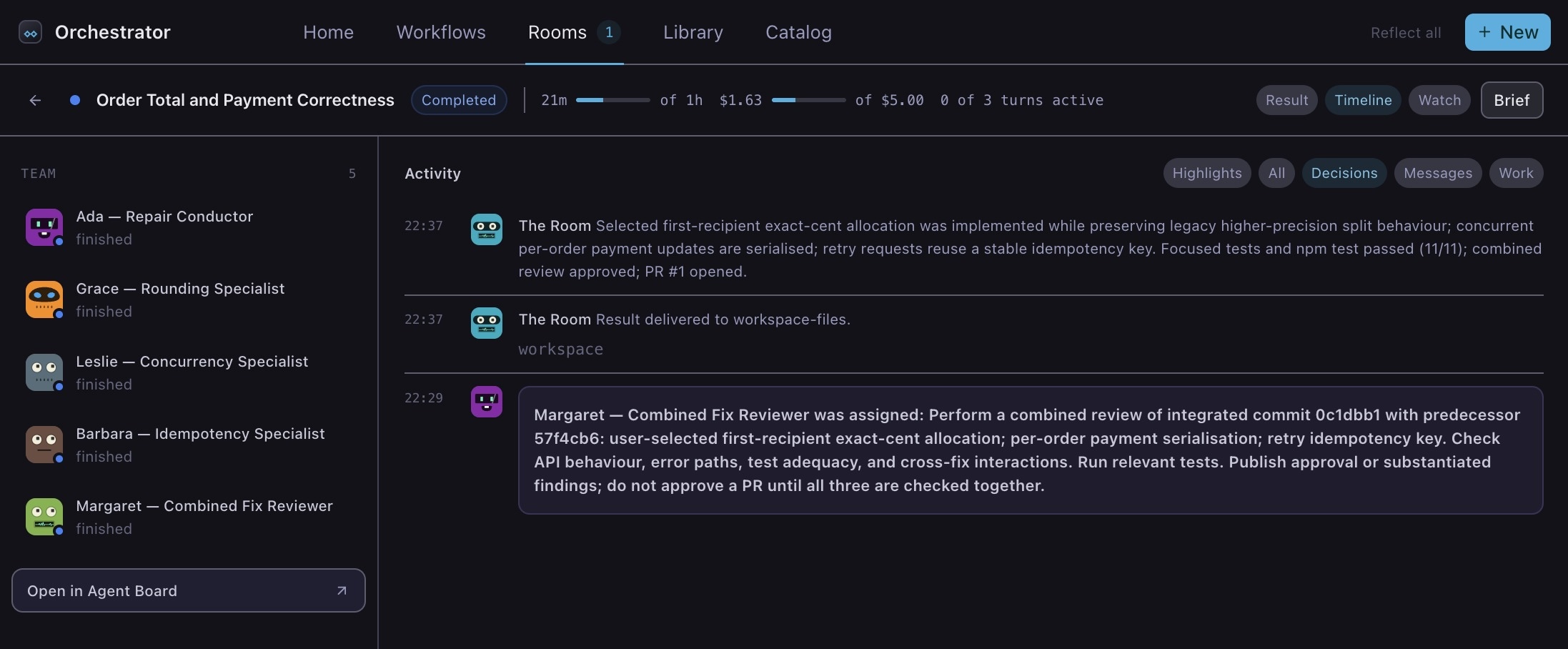
The feed opens on Highlights. Select All for the complete activity, Decisions for choices made by the team, Messages for communication between members, or Work for changes to assigned tasks.
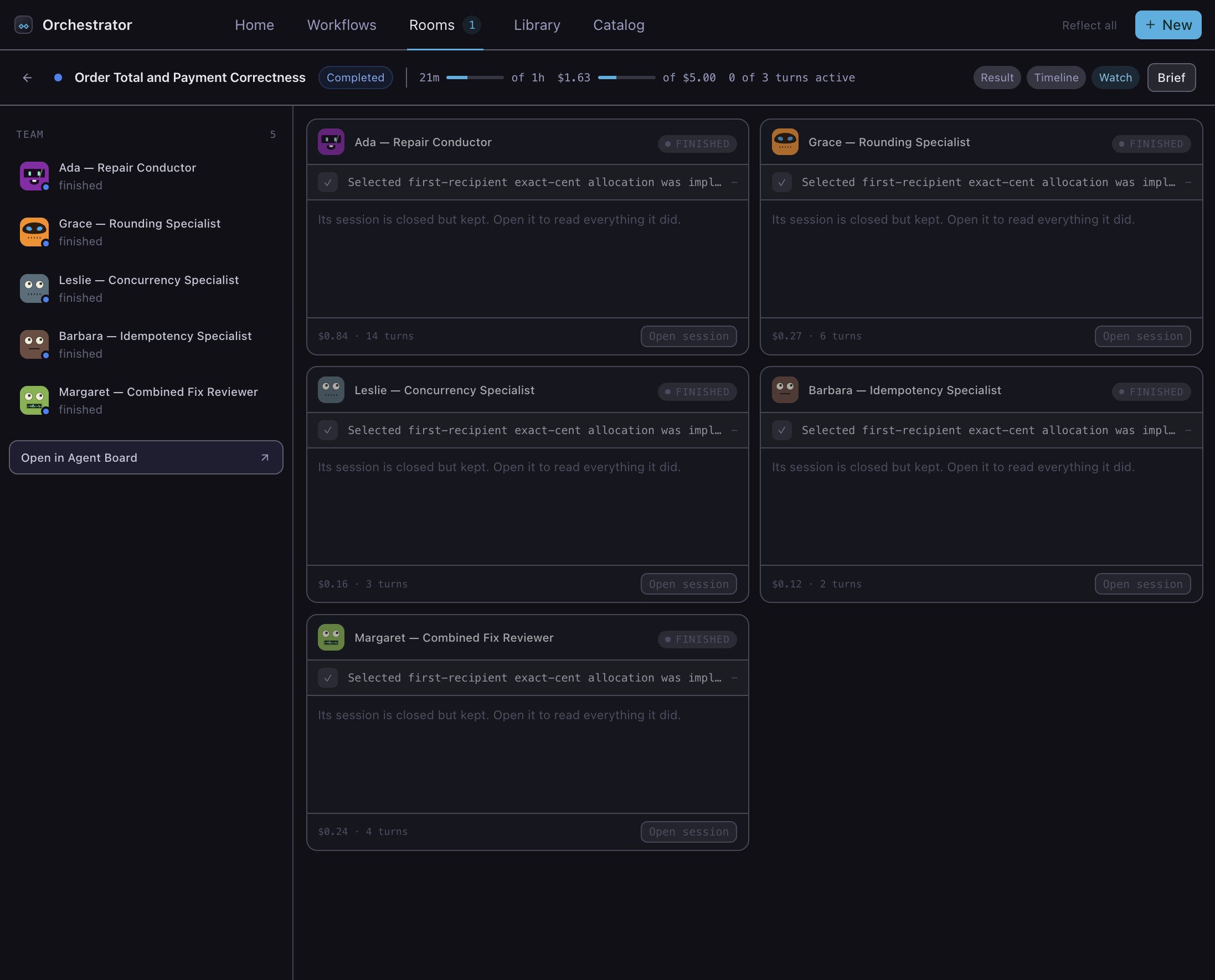
Select Watch to show one status card for each member. A card shows the member's latest message, number of turns, and cost.
Review one member
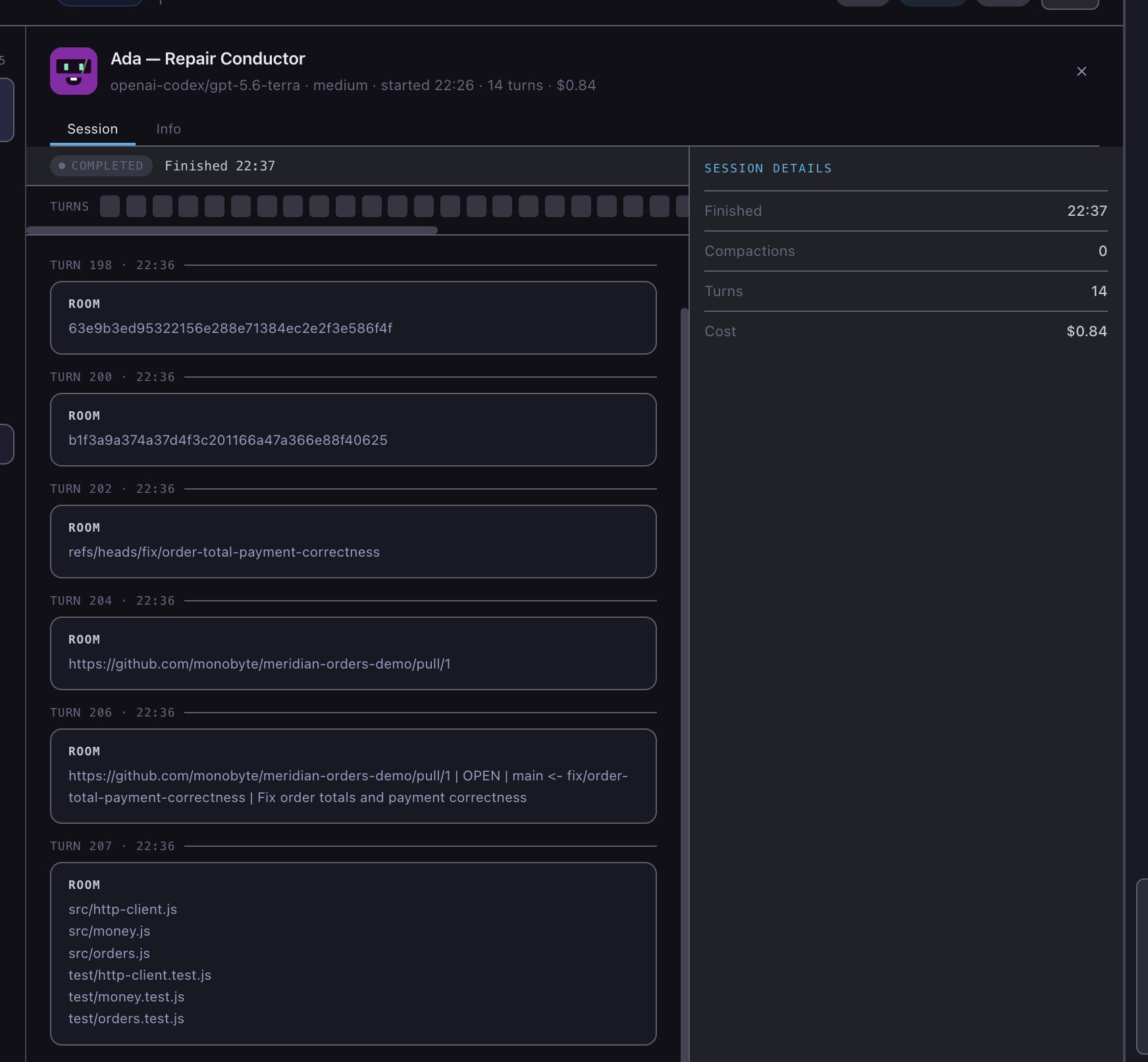
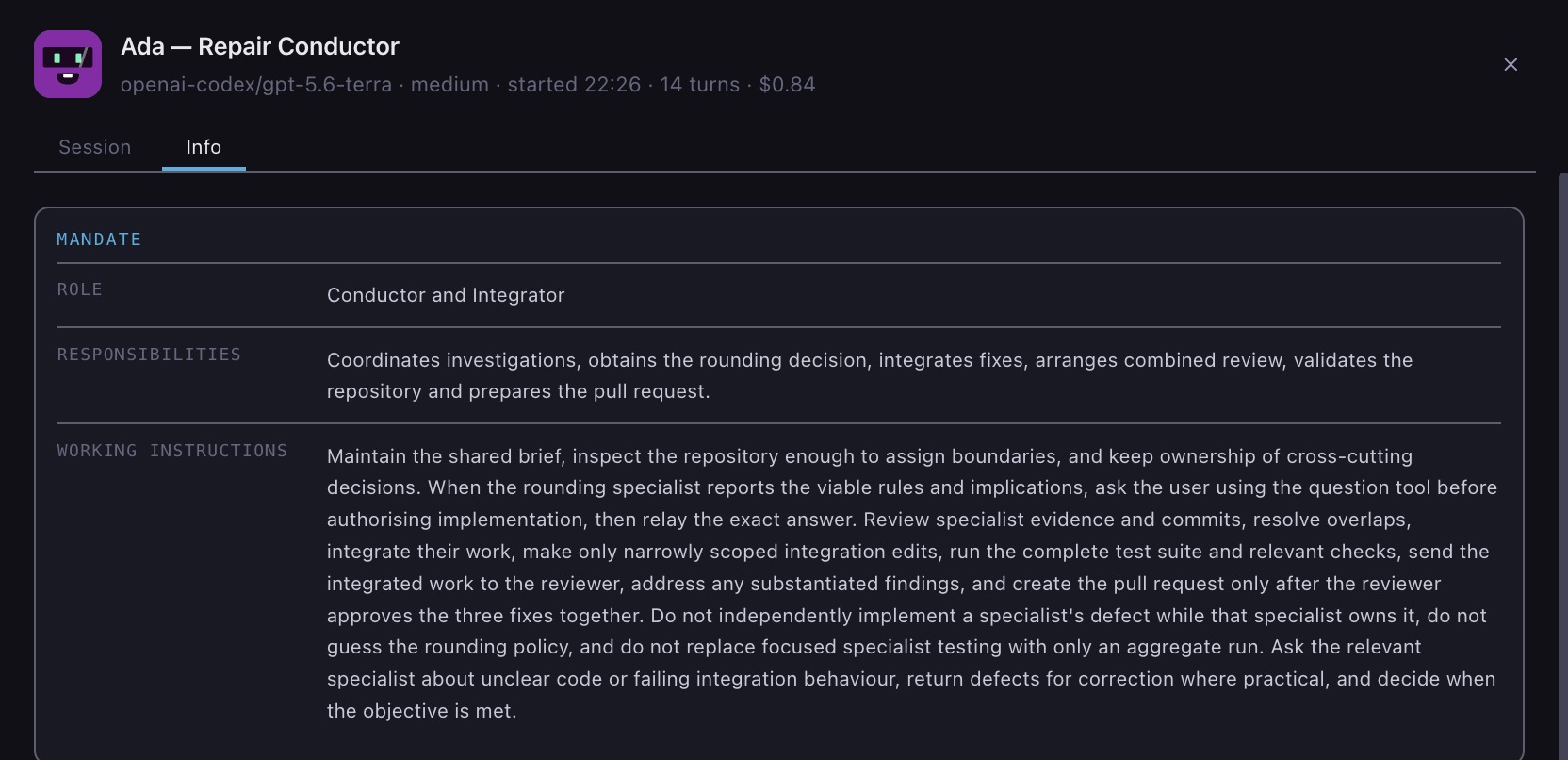
Select a member to open its details.
Session shows the member's work, one turn at a time, with its usage totals.
Info shows the member's role, responsibilities, and instructions.
5. Answer a question
The Room pauses when it needs you to choose the rounding rule.
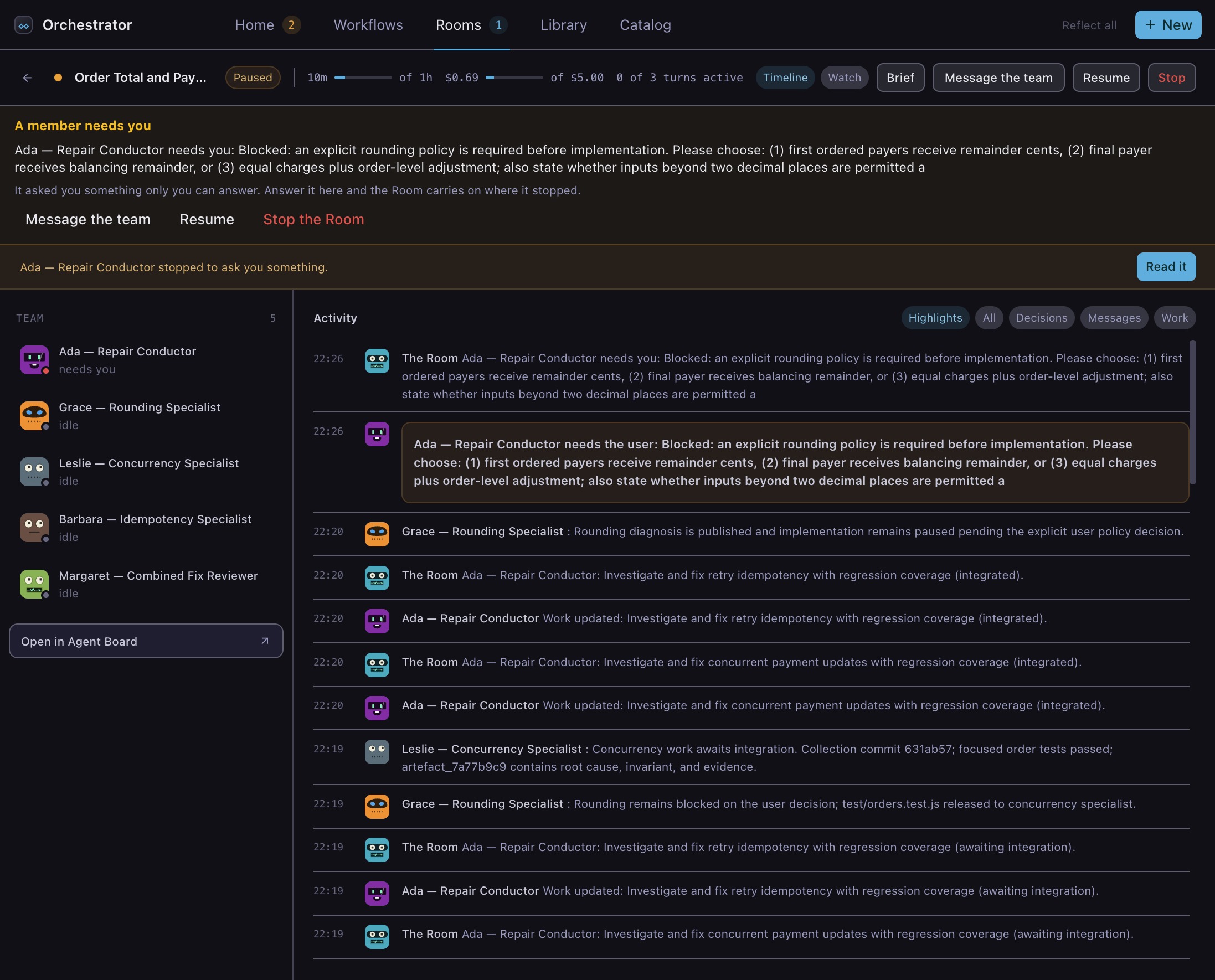
The question appears in a banner above the activity feed. It identifies the member that asked and explains the available choices. The member also has the Needs you state in the team list.
Enter your answer in the banner. The Room continues from the same point. It does not repeat completed work.
A Room can ask a question whenever its investigation finds a decision that needs your input. The question does not need to be known before the Room starts.
6. Review the team's records
Select Brief to open the records shared by all members.
Brief shows the goal, current work, and conditions for completion.
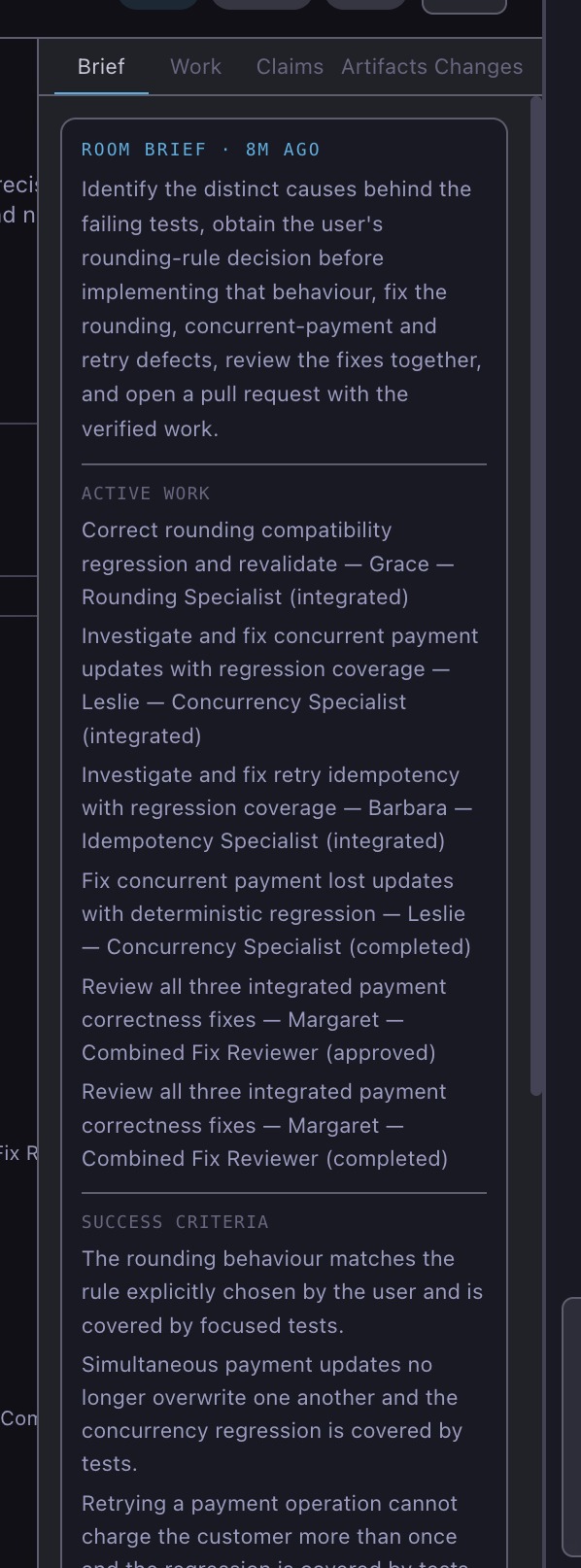
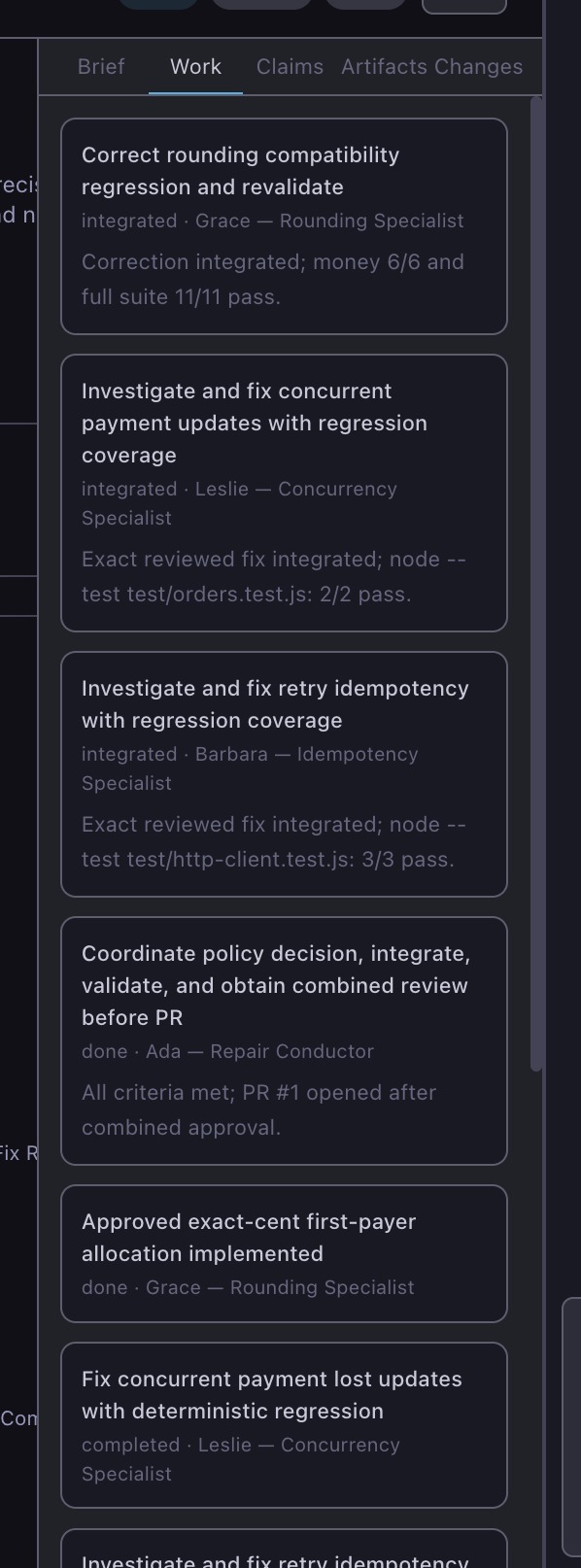
Work shows each task, its state, and its owner.
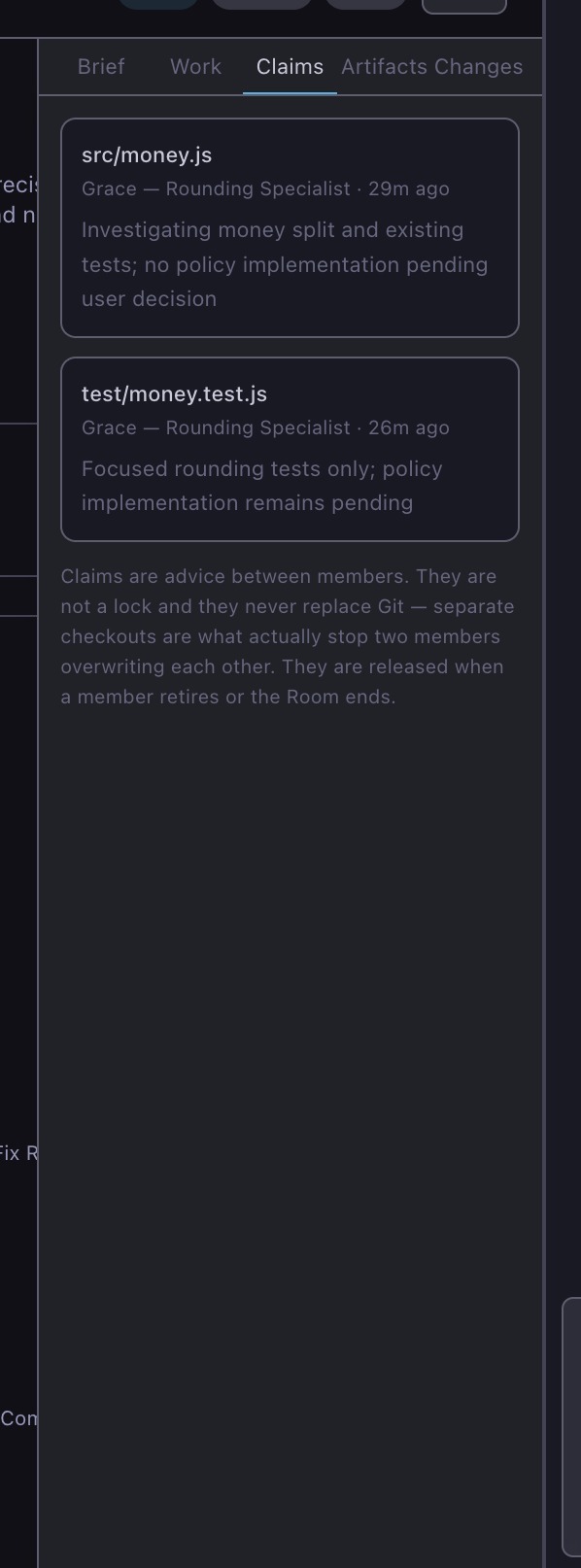
Claims shows which files each member intends to change. A claim tells other members about planned work. It does not lock the file.
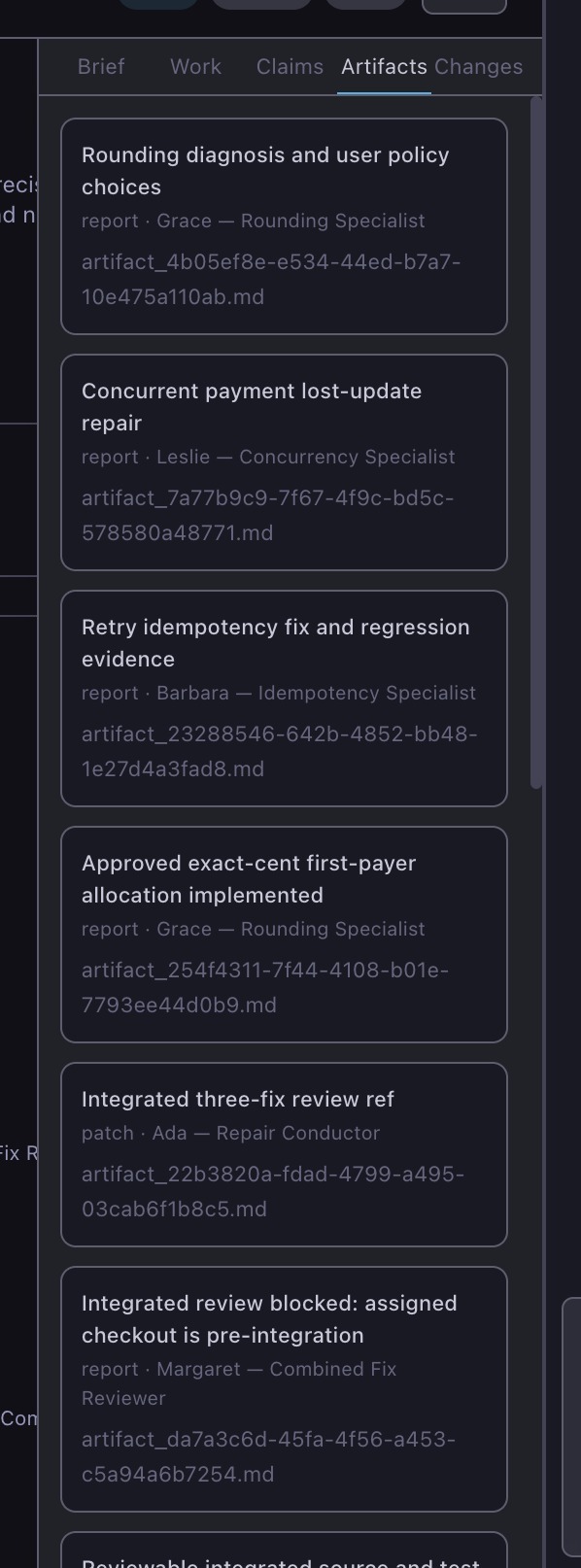
Artifacts contains results that members save for the team, such as findings, test output, and review notes.
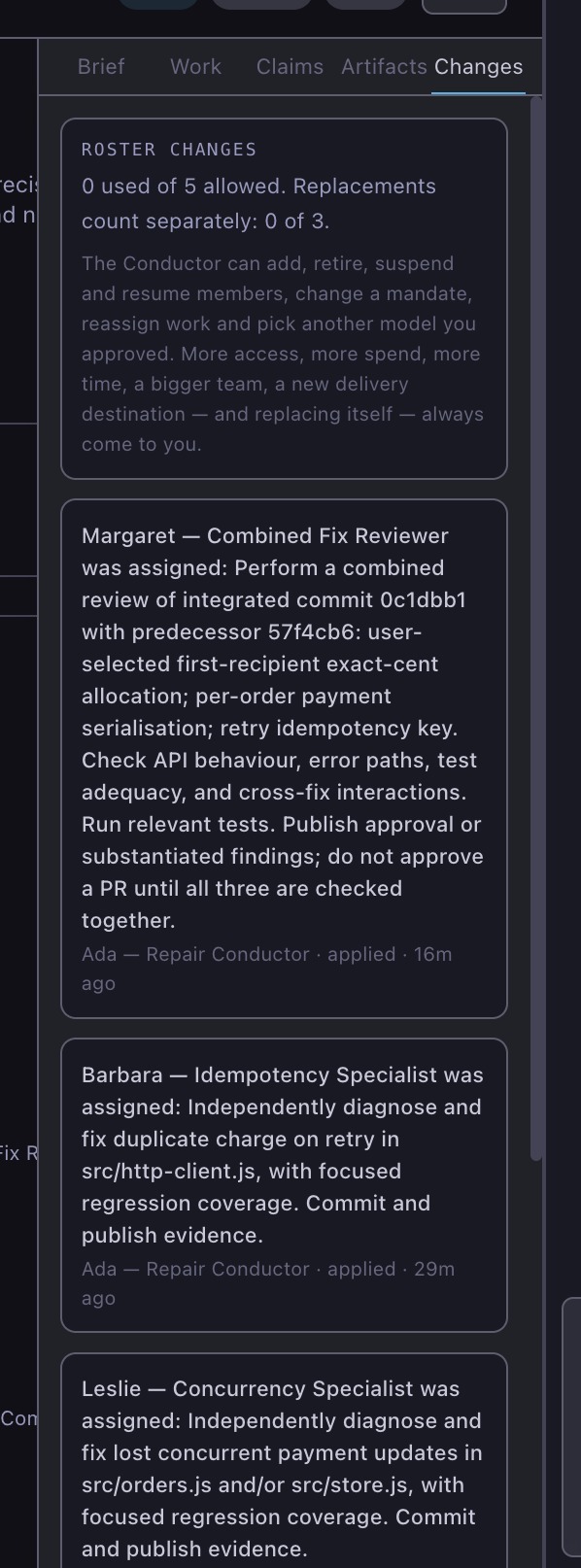
Changes shows changes that the Conductor made to the team or its assigned work. The Conductor cannot increase a member's access or add or replace members while the Room runs. It can request higher time or cost limits for you to approve.
7. Check the result
When the Room finishes, its final result appears at the top of the activity feed.
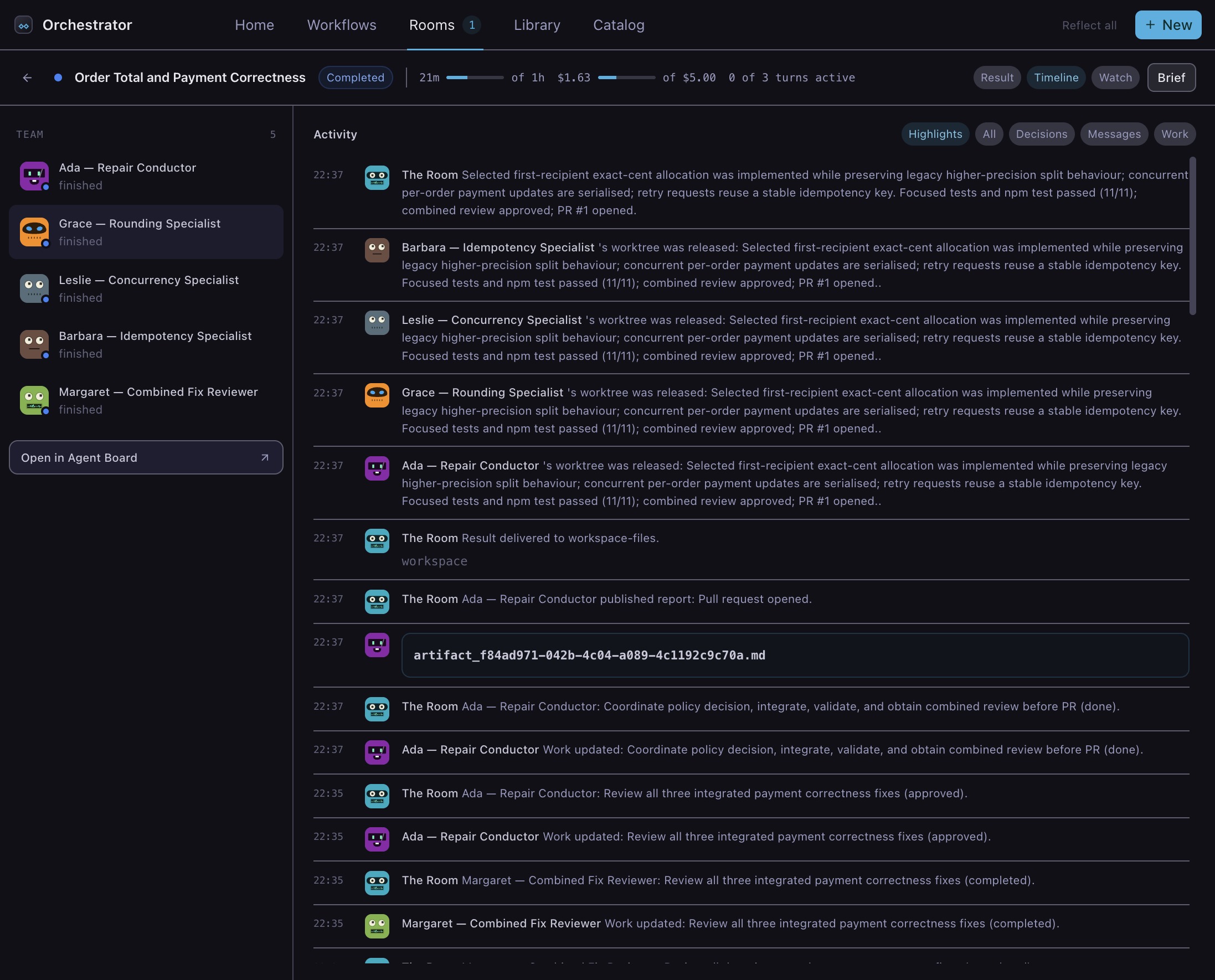
Before you accept the result:
- Read the final summary and any unfinished items.
- Review the files changed in the workspace.
- Open the review artifact and check the reviewer's findings.
- Run
npm testyourself and confirm that all tests pass.
The member sessions remain available after the Room closes. Open a member if you need to check how it reached a result.
Next steps
- Manage a Room — file coordination, access requests, team changes, and recovery.
- Rooms reference — controls, statuses, access, and storage paths.
- Create a Workflow — use a plan instead of a team.