
Dashboard and Widgets
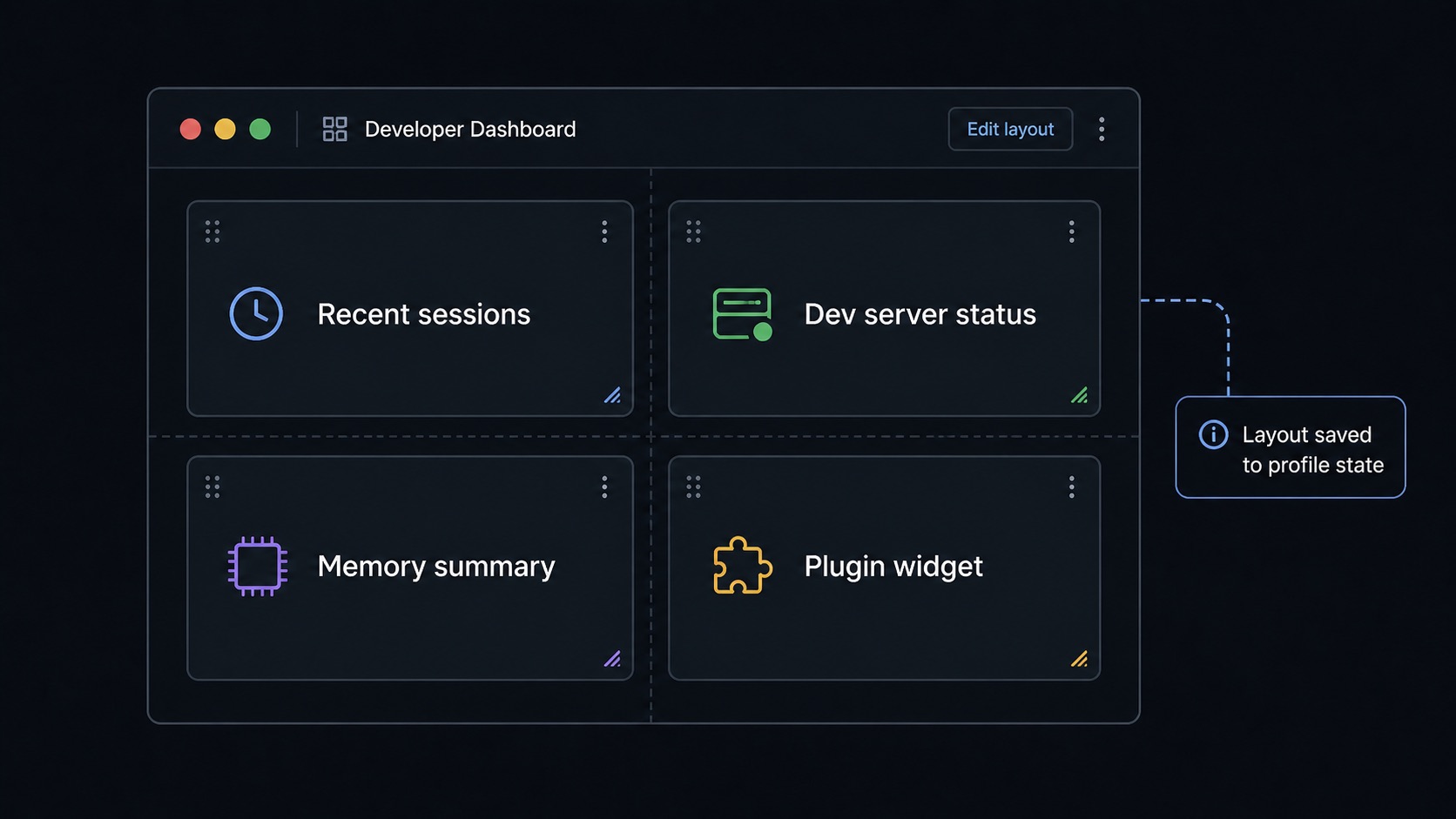
Dashboard is Sero's home surface for compact app and workspace summaries. Widgets are small panels contributed by the host or by installed apps/plugins; they are useful for status at a glance, not a replacement for opening the full app.
Add a widget
- Open Dashboard from the app sidebar or command menu.
- Click Add Widget.
- Choose a widget exposed by an installed app/plugin.
- Place it on the grid.
- Drag or resize it when you need a different layout.
Sero saves the widget instance when you add it. It saves position and size after you finish a drag or resize action. The layout belongs to the active profile.
Empty state
If the Dashboard is empty or the widget list is short:
- no installed app/plugin may expose widgets
- a plugin may not be enabled or compatible in the current profile
- runtime widgets may only appear while the plugin UI/runtime is loaded
- a runtime widget may require its app renderer to be active
Do not assume every app has a widget.
Widget types
Both types mount inside Sero's app runtime provider so they can read app/workspace context where supported.
Move, resize, and remove
Dashboard uses a draggable and resizable grid. The grid adjusts to the available width.
Typical actions:
- drag a widget to rearrange it
- resize from the widget frame/handle where available
- remove a widget from its widget controls
- add it again later from Add Widget if still available
Persistence and storage
Dashboard layout is stored with profile layout state:
That state can include widget instances and grid layout details. It is local profile data and can reveal installed apps, workspace habits, and private project names through widget titles or state. Redact before sharing.
Sero does not use browser localStorage as the public persistence model for dashboard layout.
Good uses for widgets
Widgets are best for:
- counts and recent activity
- scheduler/reminder status
- web or plugin activity summaries
- quick links into a full app
- lightweight workspace health information
Open the full app when you need rich editing, long lists, detailed settings, or sensitive data review.
Troubleshooting
Building a widget
Plugin authors build widgets from the shared @sero-ai/ui dashboard components,
which give one consistent look for spacing, typography, status colours and
overflow. See Dashboard Components.
A static widget is a federated component under
sero.app.contributes.components with
"extensionPoint": "ui.dashboard.widget". Use useWidgetRegistration() only
for a runtime widget that must appear and disappear with the current renderer
lifecycle. Both use host-owned widget chrome. See
Plugin Extension Points.
Widgets in the browser
Sero Remote shows widgets too, in its own Dashboard view. A widget must opt in:
its plugin sets "remote": true on the contribution. See
Remote widgets.