
App Store, Favorites, and Installed Plugins
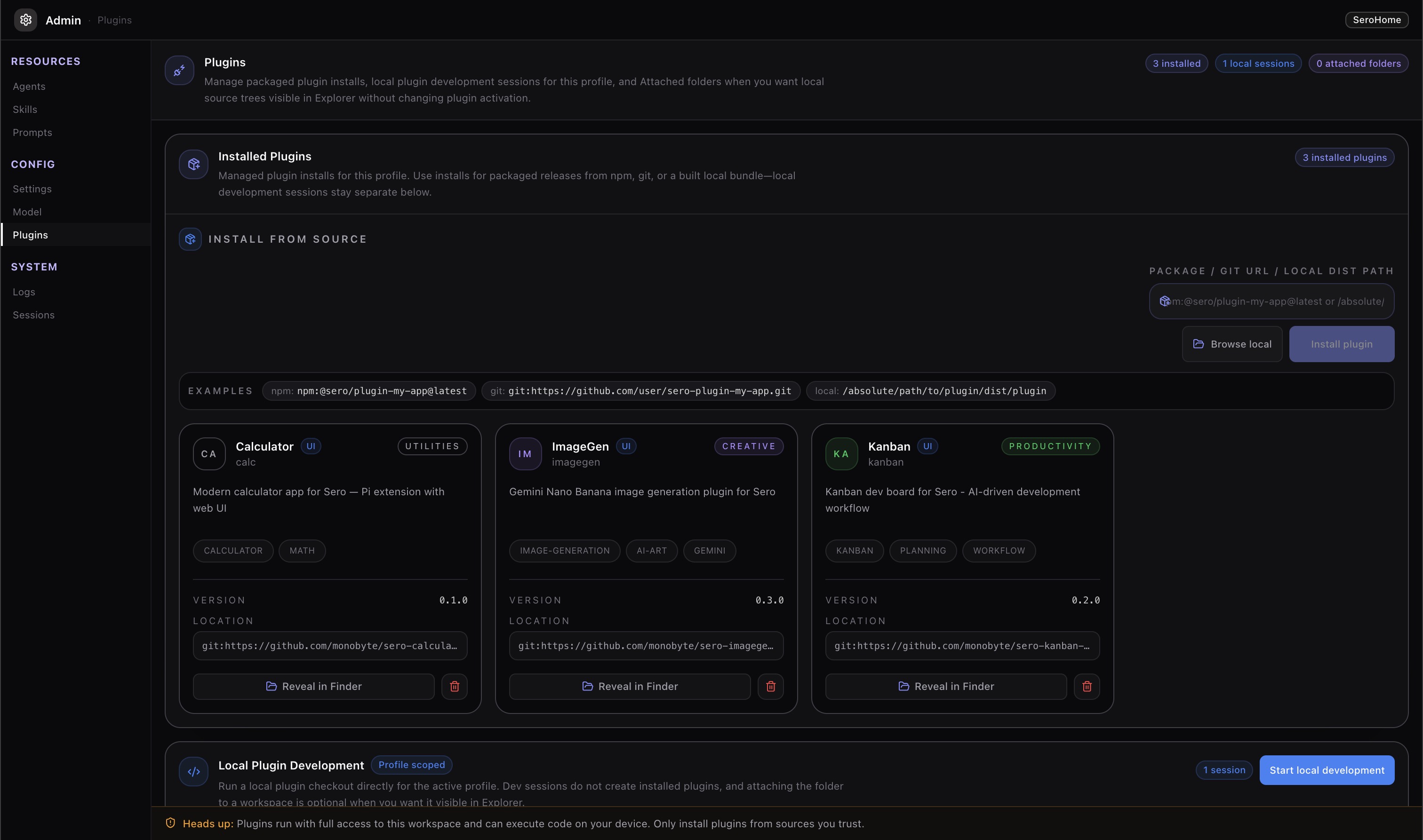
Use App Store to find plugin apps, install external plugins, and choose which plugin apps appear in the sidebar.
Understand the app types
Sero has two types of app:
- Core apps, such as Dashboard, Agent Board, and Explorer, are part of the desktop shell. They are always available.
- Plugin apps come from built-in or installed plugins. A plugin can also add agent tools, commands, background services, provider information, or dashboard widgets.
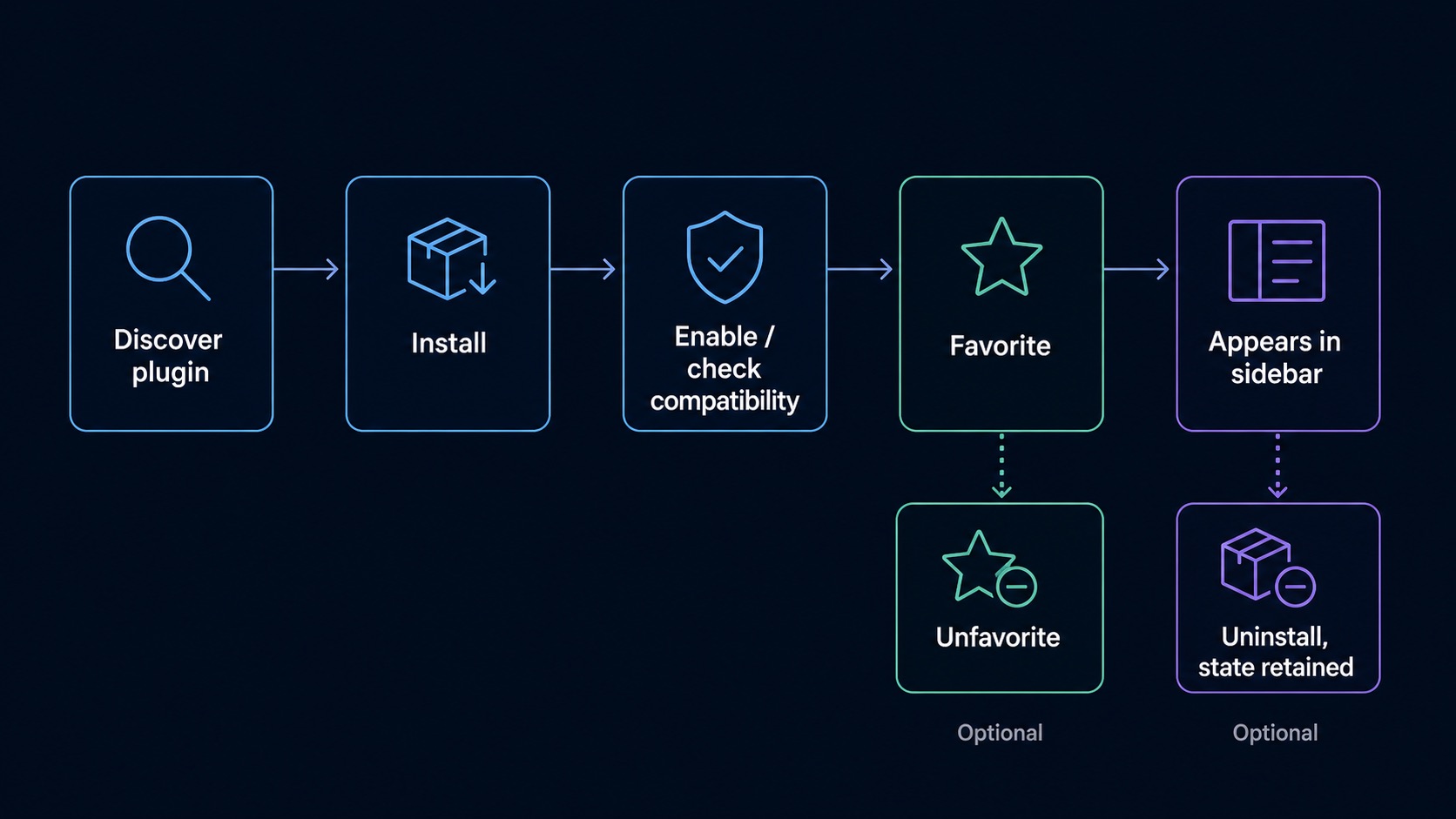
A favorite changes the sidebar only. It does not install, uninstall, enable, or disable a plugin.
Find and install a plugin
-
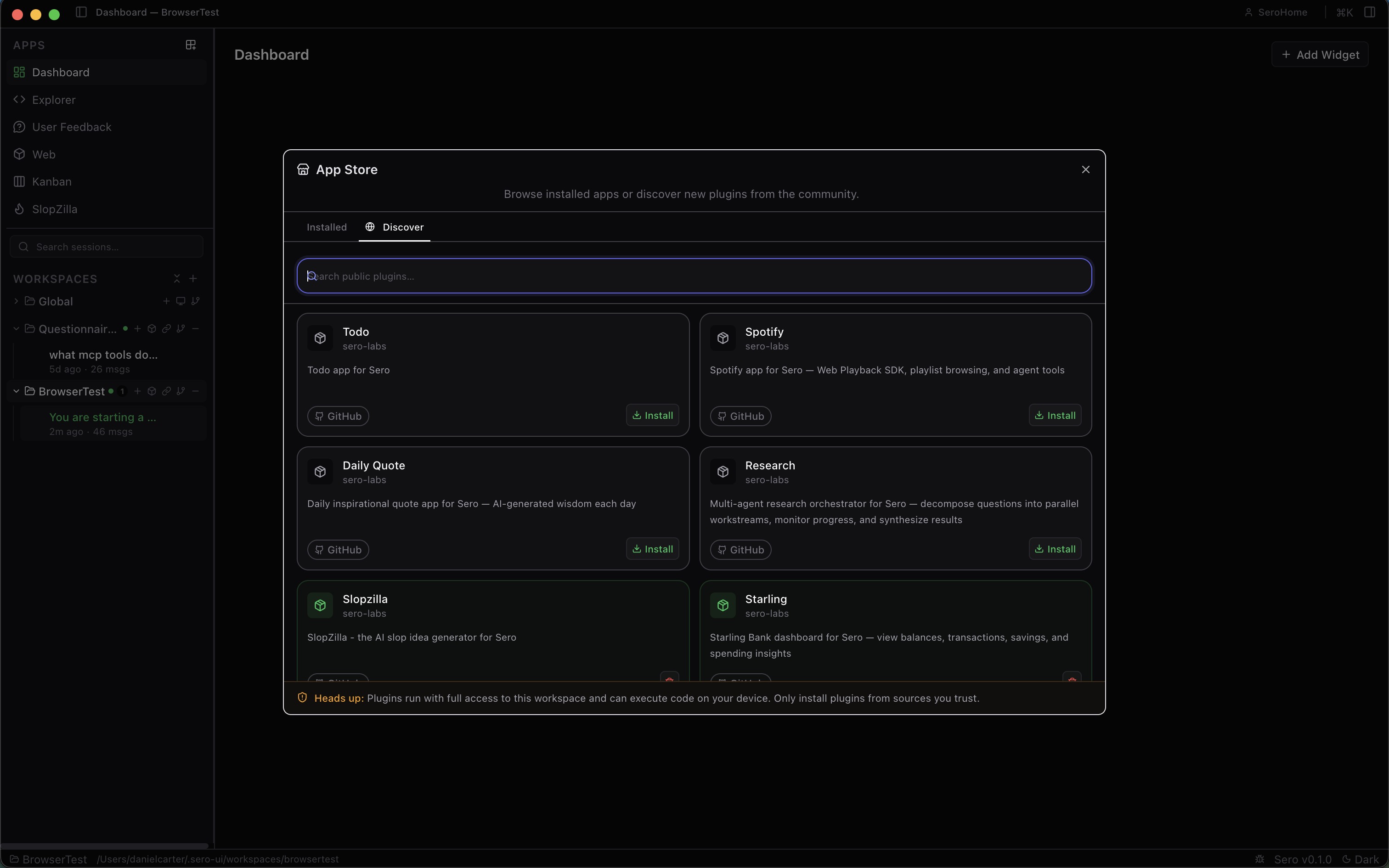
Select Open App Store in the sidebar.
-
Select Discover.
-
Enter a search term. Sero searches public GitHub and npm sources.
-
Review the source and package details.
A plugin can run code and can access workspaces allowed by its manifest and host capabilities. Install only source that you trust.
-
Select Install.
The result changes to an installed state after the install completes. Sero then refreshes discovered apps and active agent resources.
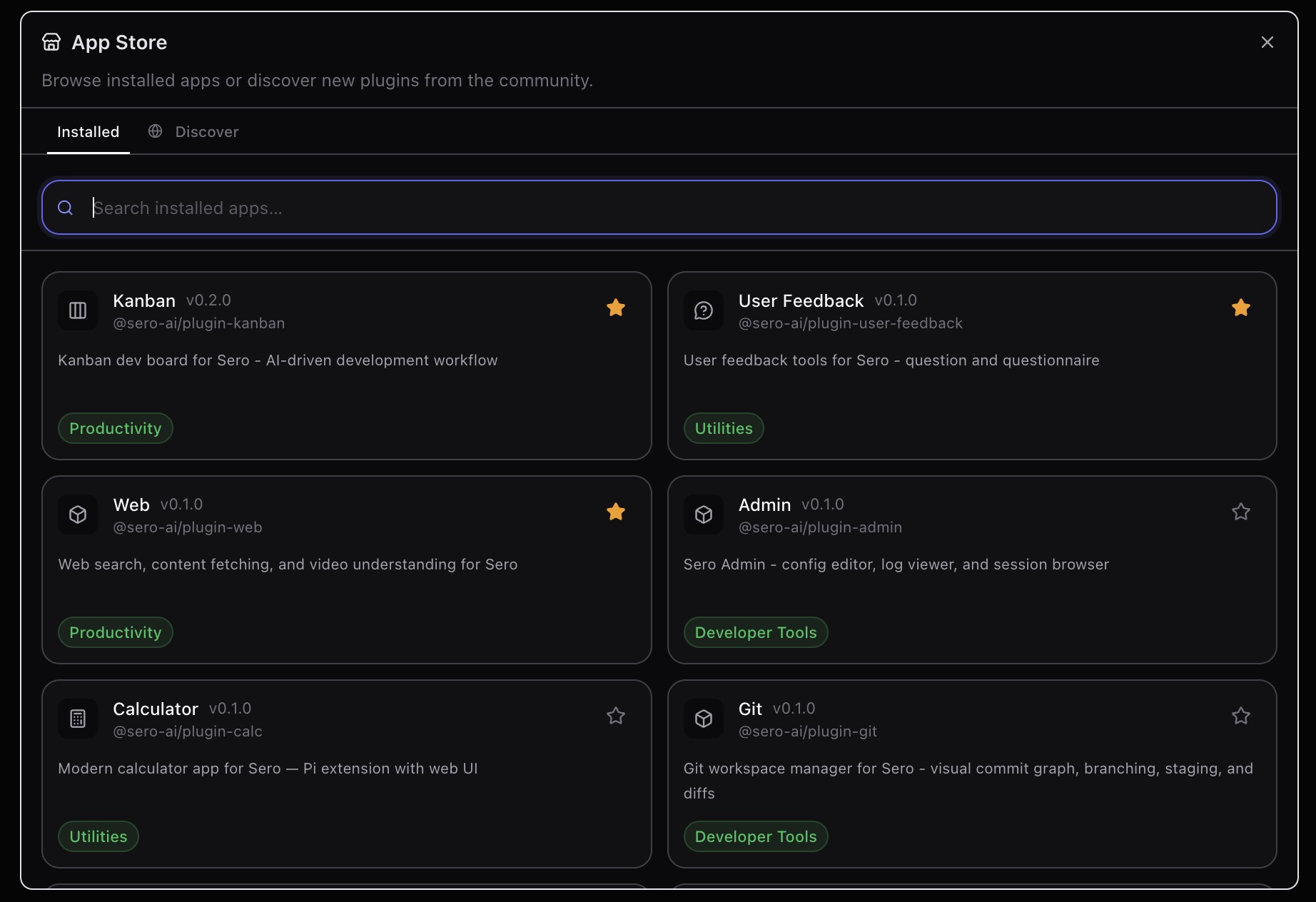
The Installed tab lists the plugin apps that Sero knows in the active profile. Use its search field to filter that list.
Add an app to the sidebar
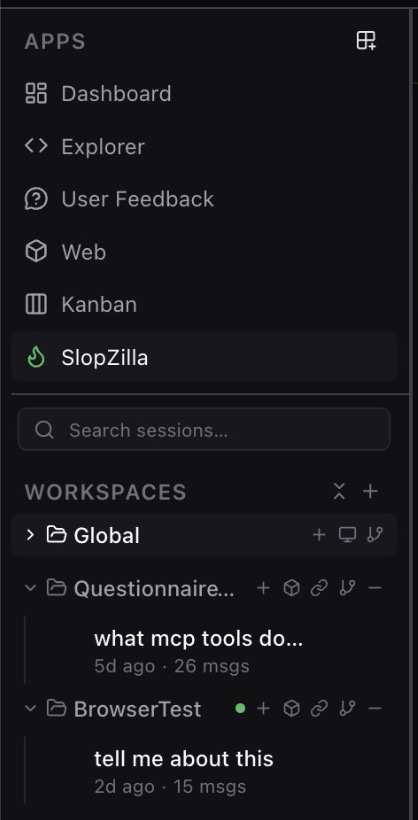
Select the star on an installed plugin app to add it to the sidebar. Clear the star to remove it from the sidebar. Sero saves this choice in the profile layout.
Core apps stay at the start of the sidebar. Favorite plugin apps follow them. If an installed app does not appear, confirm that it provides an app UI and that the host supports it.
Uninstall a plugin
Use Uninstall for the plugin in Discover or the plugin management view. Uninstall removes the installed package and its install record. It does not remove all data that the plugin created.
Plugin data can remain in these locations:
Logs and files that you exported can also remain. This retained state lets a later install use the same data. Remove it separately only when you know that you no longer need it.
If an app is missing
Check these items:
- Open App Store and confirm that the plugin is installed.
- Confirm that the plugin provides an app UI.
- Select its star if you want it in the sidebar.
- Read any Unsupported host message on the card.
- Restart Sero if resources did not refresh after an install or uninstall.
For plugin storage, see State and Folders. For the plugin model and author references, see Plugins and Apps.