
Manage Workflows
This guide explains how to improve a Workflow from its run history, save what it proved as a skill, run it automatically, change one step, recover from an error, and reuse it in another workspace.
Start with Create a Workflow if you have not made one yet. See the Workflows reference for all commands, limits, and storage paths.
Improve a Workflow with Reflect
Reflect uses the results of earlier runs to suggest changes to a Workflow. It can find instructions that need more detail, checks that should be added, or steps that often cause a run to fail.
The Reflect button appears after the Workflow has run at least once.
To reflect on one Workflow:
- Open the Workflow.
- Select Reflect.
- Review each item in Suggestions. It shows why Sero recommends the change, its confidence, and which steps will change.
- Select Approve to apply a suggestion to the plan. Select Reject to keep the current plan.
When you reject a suggestion, you can record a reason. Sero keeps that reason so it does not propose the same change again.
Approved suggestions become plan revisions. They do not change the results of earlier runs. Review the updated plan before you run the Workflow again.
The What reflection has learned section keeps useful findings from earlier reflections. Select Reflect again after more runs to include the new results.
To review every Workflow in the current workspace that has run, enter
/orchestrator reflect_workspace in chat. Sero adds the suggestions to each Workflow
for you to approve or reject.
Reflect is most useful for recurring Workflows. It lets you improve the plan from real run results instead of waiting for the same problem to happen again.
Save a Workflow as a skill
Reflect improves the Workflow. Skill takes the method out of it, so the Sero agent can do the same work by hand in a chat, and any agent in your profile can use it.
The Skill button appears after the Workflow completes a run.
To save one:
- Open the Workflow.
- Select Skill. Sero reads the plan and the run history and writes a draft.
- Review the draft. You can change the name, the description, and the full text.
- Select Save skill.
The description tells the agent when to use the skill, so keep it specific. Say what the skill does and which requests must start it.
Sero can also tell you that there is nothing to teach. A one-off task, or a task that an agent does correctly without help, gives no skill. This is a usual result.
The saved skill goes in your profile with all your other skills. Open Admin → Skills to change it or to delete it later. If the name is already used, Sero asks you to give a different name or to replace the other skill.
Run a Workflow automatically
A Workflow can run on a schedule or when a specified event occurs. Add this to the description when you create the Workflow, or use Refine later.
For example:
- "Run every weekday at 9:00 AM."
- "Run when a file in
src/changes." - "Run when the continuous integration check fails on the main branch."
Use a specific folder or file pattern for file-change events. A broad pattern can start the Workflow more often than you expect.
An automatic run follows the same plan as a manual run. If a step needs your approval, the Workflow pauses and Sero notifies you.
Use a managed worktree for an automatic Workflow that can change files. This keeps its changes separate from the files in your open workspace.
Protect work that you have not committed
Before a Workflow changes files in your open workspace, Sero checks for uncommitted changes. If it finds any, it asks how to continue.
- Run isolated creates a managed worktree and leaves your changes alone. If you do not answer within 60 seconds, Sero selects this option.
- Run here once lets this run use the workspace without moving your changes.
- Always run here for this workflow saves that choice for later runs.
- Stash changes and run here creates a Git stash before the run starts.
- Skip this run cancels this run and waits for the next schedule or event.
A manual or scheduled run can also use Snooze. You can delay it for 15 minutes, 1 hour, 4 hours, or until 9:00 AM the next day. The delay remains after Sero restarts. Sero checks the workspace again before it starts the run.
You cannot snooze a run that started because of an event. Sero cannot keep the event data for a delayed run.
Attempt history records a delayed run as Snoozed and a cancelled run as Skipped. Waiting means that the Workflow needs your input or has no step that it can start.
Change the model, agent, or tools for one step
Select Tune on a step to change how that step runs. The change does not affect the other steps.
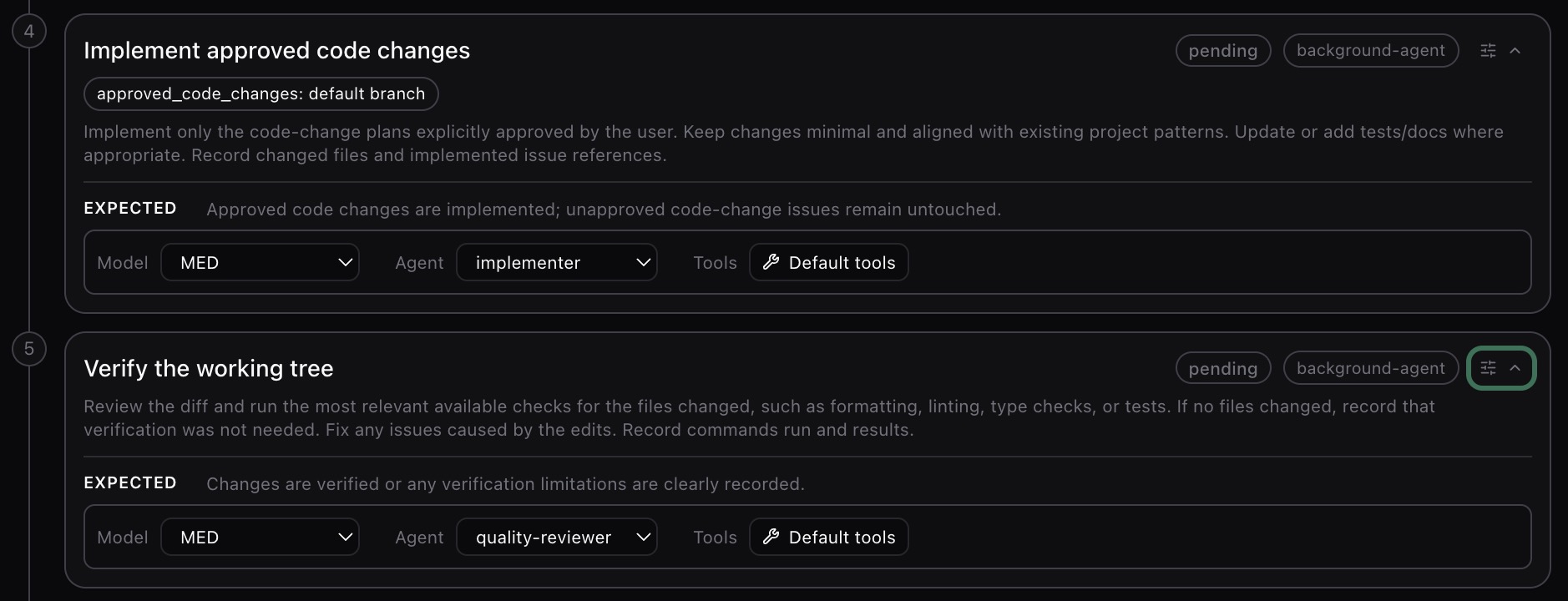
You can change:
- Model — select a different model for work that needs more or less capability.
- Tools — give the step an additional tool that the rest of the plan does not need.
- Agent — use a named agent with its own instructions and default model.
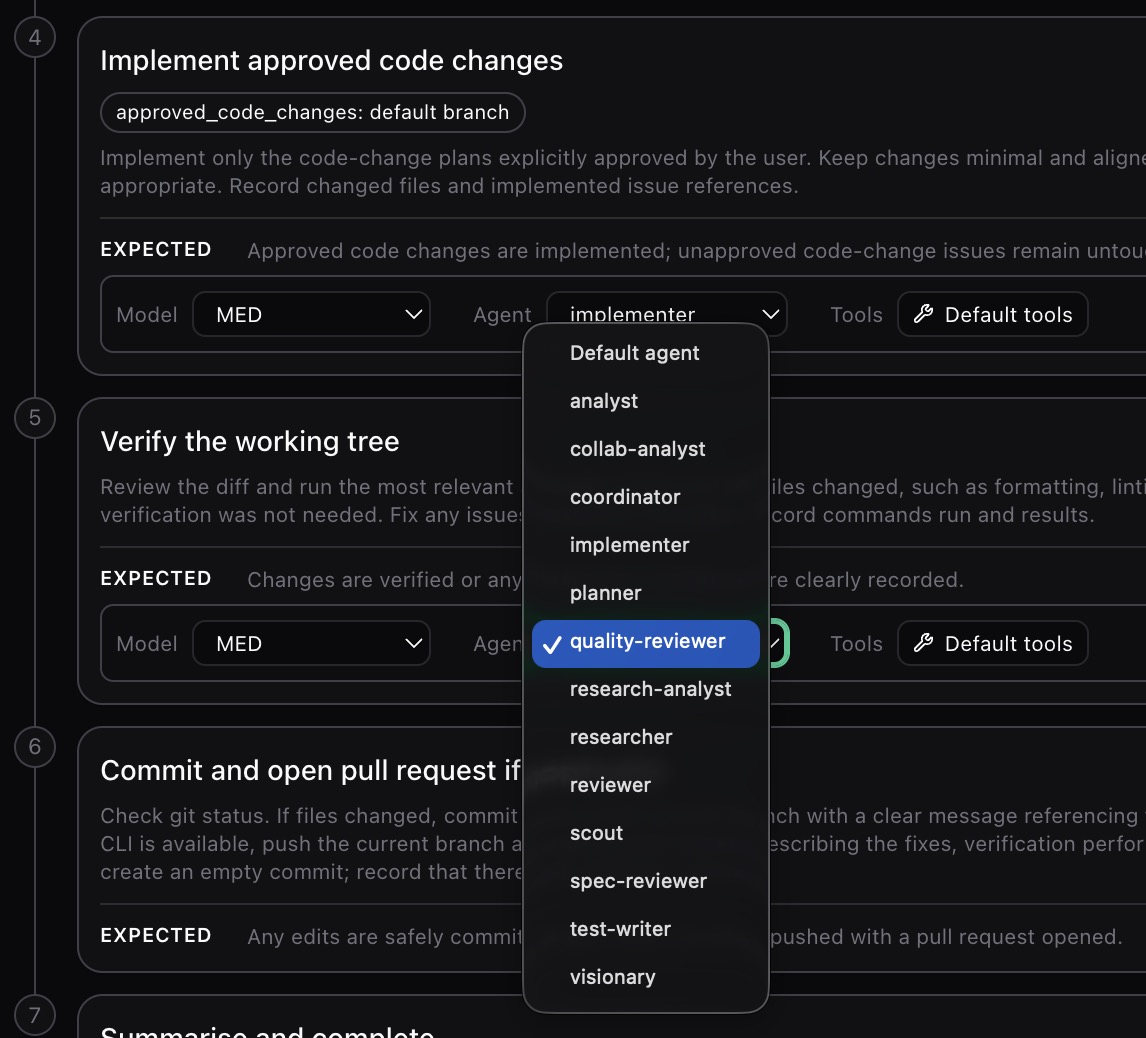
Use a named agent when the step needs a specific role, such as a reviewer. Use a model change when only the model capability needs to change.
Continue after an error
A Workflow has the Blocked status when it cannot continue. Open the Workflow and read the reason before you select an action.
- Retry step runs the failed step again and keeps all completed steps. Fix the cause first, such as a missing sign-in, failed check, or missing file.
- Restart starts the plan again from its first step. It discards the current run's progress, but it does not remove commits or pull requests that already exist.
- Refine changes the plan. Use it when the current instructions or steps cannot complete the task.
Do not retry a step without fixing the cause. The same error will usually occur again.
Reuse a Workflow in another workspace
The Workflow Library stores Workflows in your Sero profile. A saved Workflow is available in all your workspaces.
To save one:
- Open the Workflow.
- Select Library, then Save to Library.
- Add an optional note that describes the version.
The saved version contains the plan, schedule, limits, and context. It does not contain run history.
To use it elsewhere, open Library in the destination workspace and select Load. Sero creates a new draft. Review the draft and adapt it to the new workspace before you activate it.
If someone saves a newer version, the loaded Workflow shows an Update option.
Install a Workflow from the Catalog
The Catalog contains Workflows that you can install instead of creating from an empty description. Official Sero entries have a Verified badge. You can also add another catalog repository, including a private company repository.
Select Install on an entry. Sero creates a draft and adapts it to the current workspace. It asks for information that it cannot determine, such as the branch to watch. Review the plan before you activate it.
When a new catalog version is available, select Update & re-adapt to install it and adapt it to the current workspace.