
Agent Sessions and Context
The chat panel is where you ask Sero to plan, inspect files, edit code, use tools, and explain what it is doing. This guide covers the day-to-day composer controls that help you give the agent useful context without assuming that every saved detail is included on every turn.
Fast path: include a file and a workspace snapshot
- Open or create a workspace session.
- Type
@and choose a file from the workspace. - Open composer actions and choose Insert workspace snapshot.
- Add the current goal in plain language.
- Check the model selector, then send.
Use snapshots for orientation, not as a replacement for asking the agent to inspect current files.
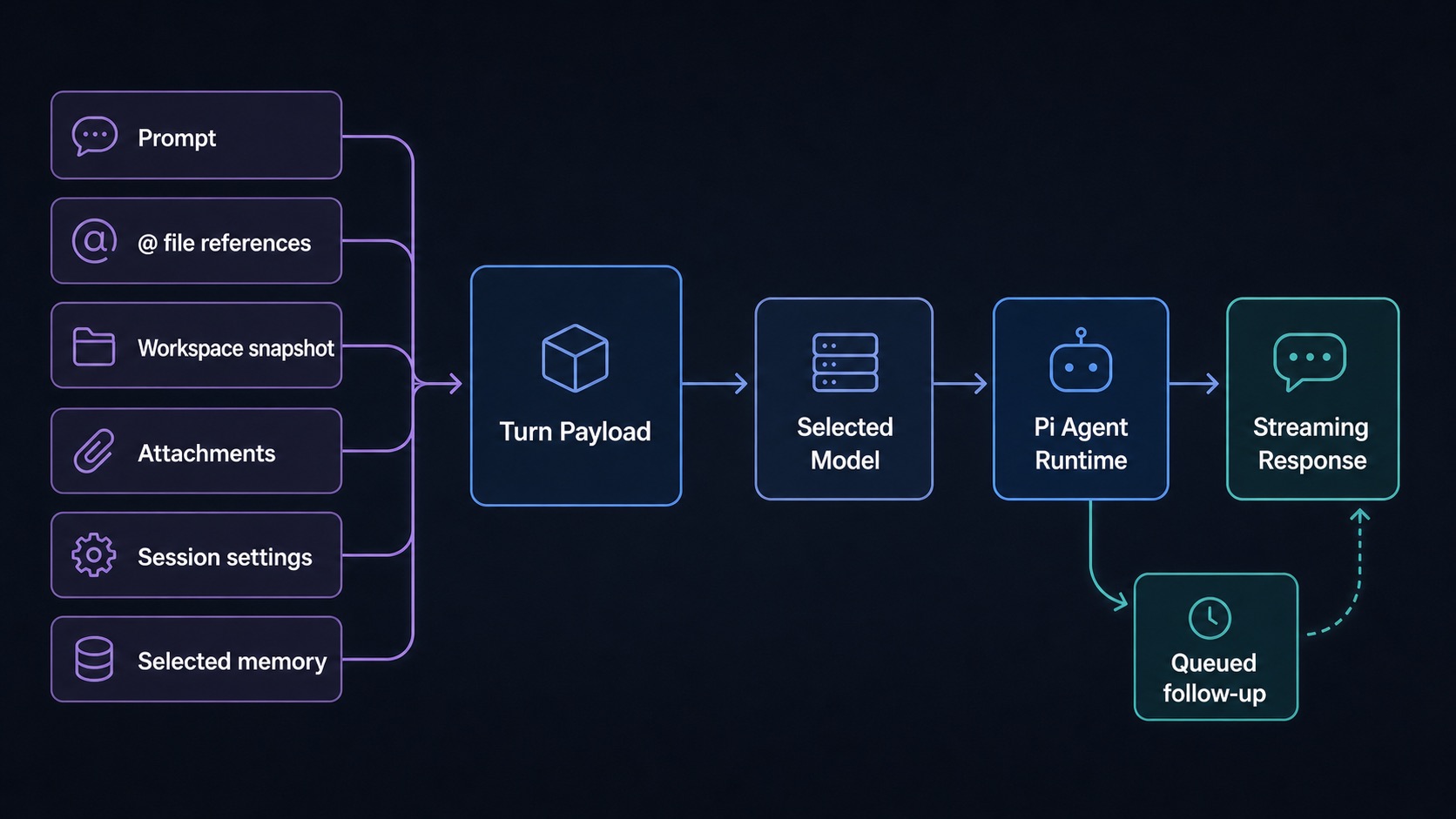
What a session remembers
A session keeps conversation history and session-scoped settings for the current profile. History, memory, and context controls can help the agent, but they are not guarantees. If an instruction is critical, put it in the current prompt.
Good prompts usually include:
- the exact outcome you want
- files or folders to inspect
- constraints such as “docs-only” or “do not change product code”
- how much autonomy you expect
- when to stop and ask
Composer controls
Context editor and presets
The context editor is for session-level instructions and available capabilities. It can expose:
- system prompt text for the session
- tool selection where supported
- skills and presets where available
Sessions load skills from Sero's own skill folders, from installed plugins, and from a project's .agents/skills folder. They do not load the user-global ~/.agents/skills folder, which other agent tools write to. The Skills page lists your profile's skills, plugin skills, and the .agents/skills skills of each project, in collapsible groups. You can edit your own skills and a project's skills. Plugin skills are read only. If two skills share a name, a chat uses the project's skill first, then yours, then the plugin's. The page marks the skill that is not used. When it shows all projects at once, it does not name a winner. It says that the name is used in more than one place, because each project decides for itself.
Use it for durable guidance within a session, such as “prefer documentation-only edits” or “ask before destructive Git operations.” Do not rely on it to override every future model decision. Re-state important constraints in the prompt when the risk is high.
Slash commands and file references
Type / to see slash commands relevant to the current focus. Type @ to search workspace files. These menus help avoid ambiguous requests like “open the config” when multiple files match.
Examples:
Command availability depends on the focused app and installed plugins.
Steering, stopping, and queued follow-ups
While a turn is streaming, a normal submit steers the active turn. On macOS, hold Command when you submit to queue the message as a follow-up. On Windows or Linux, hold Control when you submit. Sero sends the next queued message after streaming stops. You can remove a queued message before Sero sends it.
You can also intervene:
- Stop/abort if the agent is clearly off track.
- Send a short steering message when you need to redirect the active turn.
- Queue a follow-up when you want the next prompt to run after the current response finishes.
Steering is not a fine-grained debugger. If the agent already changed files, review the diff and use source-control or undo tools when needed.
Voice transcription
Voice input captures microphone audio locally in the renderer, sends it through Sero's voice bridge, and appends the transcript to the composer.
Requirements:
- microphone permission for the Sero/Electron app
- OpenAI credentials available to the active profile or environment
- network/provider access for transcription
Common errors:
Privacy note: spoken text may be sent to the transcription provider configured for the feature. Do not dictate secrets unless you are comfortable sending that audio/text through the provider.