
Workspace and Chat
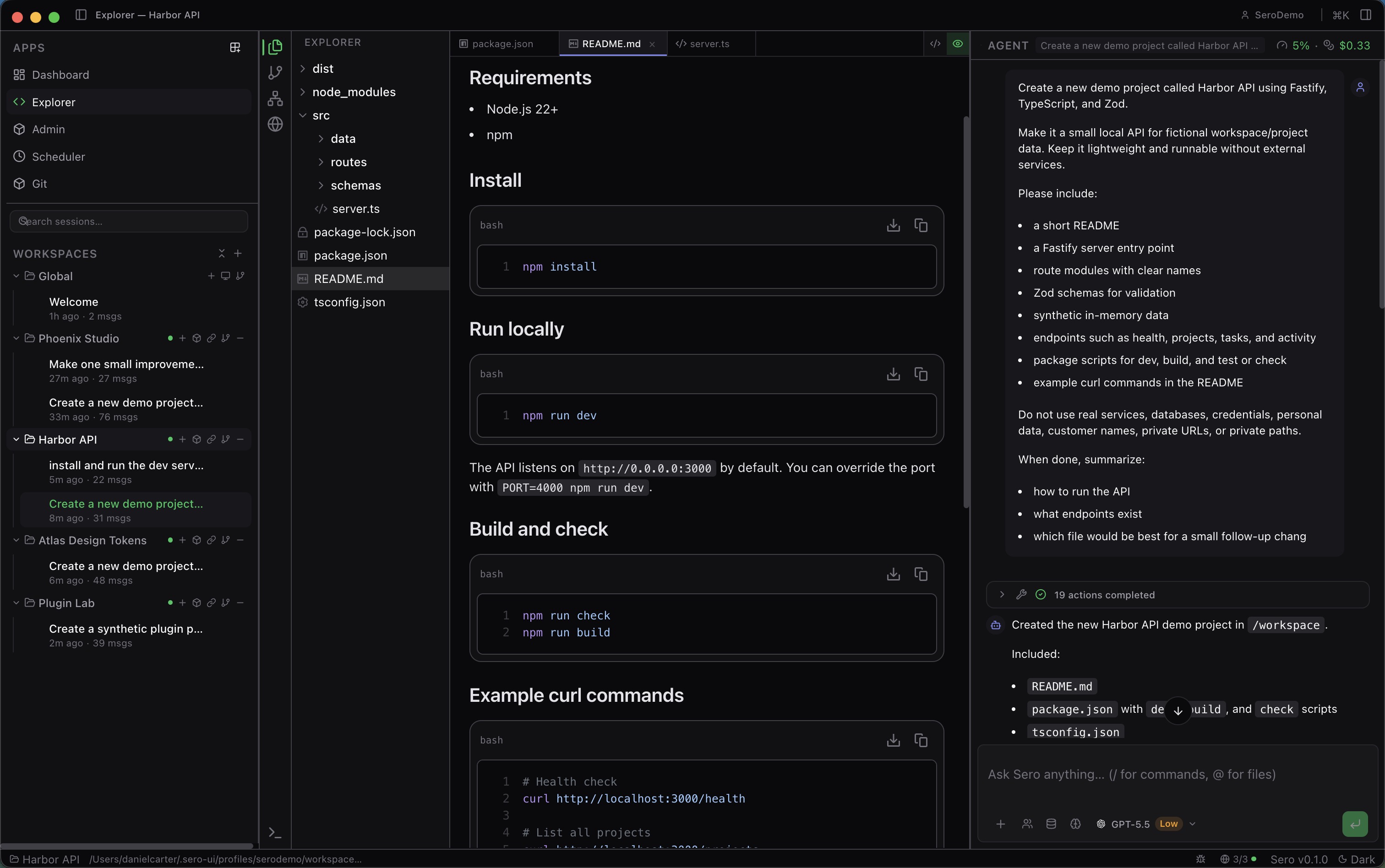
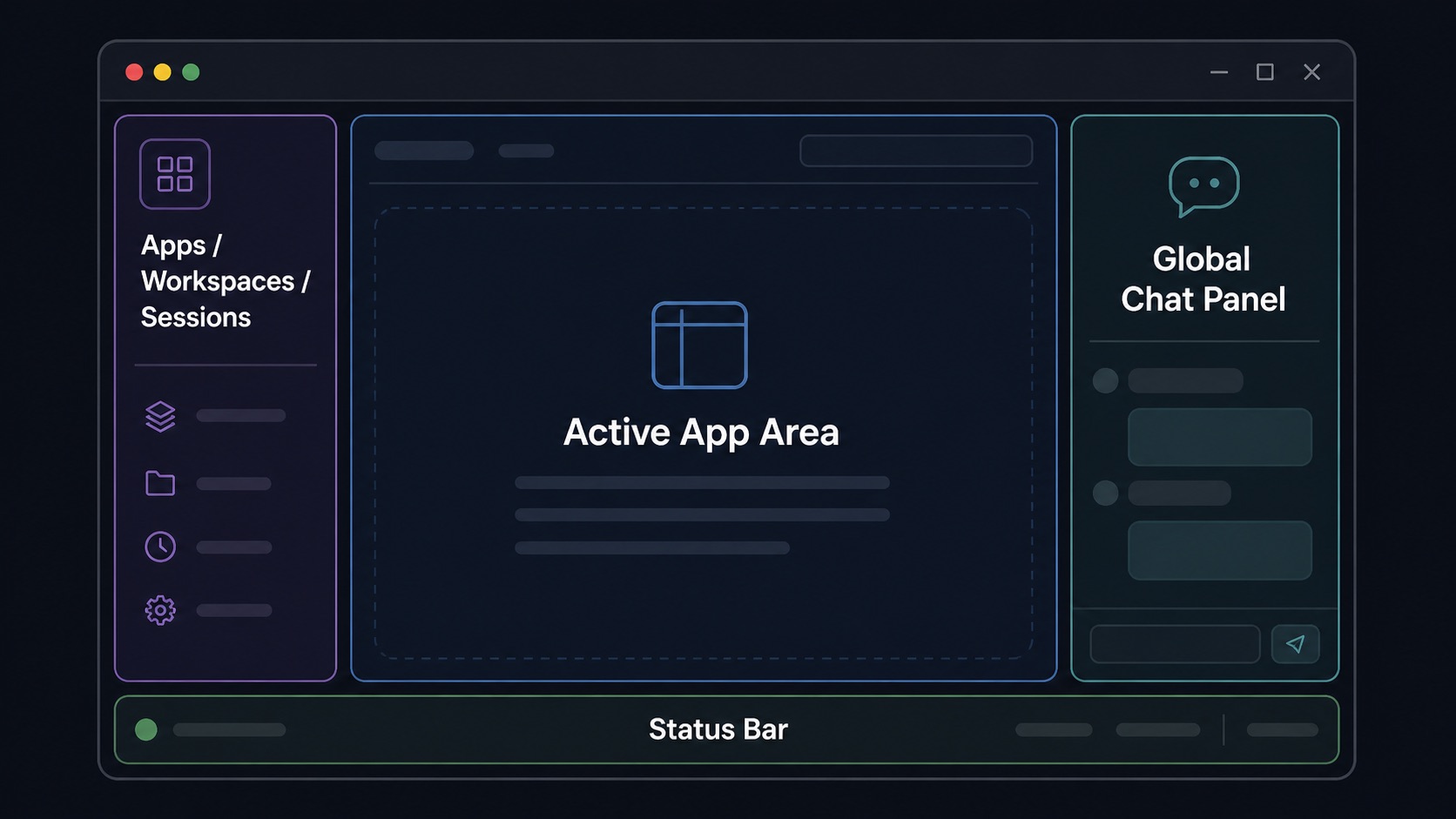
Sero opens into a persistent desktop workspace: a left navigation sidebar, a central app surface, and a global chat panel that can stay available while you move between apps.
This guide explains the basic mental model. For the detailed chat composer, attachments, context editor, slash commands, steering, queued follow-ups, and voice input, see Agent Sessions and Context.
Workspace runtime
Host is the default workspace runtime on supported platforms. Apple Container and Docker / Podman are explicit container choices when you want container isolation, image-provided tools, or container networking behavior.
For the current support matrix, see Support Scope. For the high-level implementation model, see Architecture.
First run and profiles
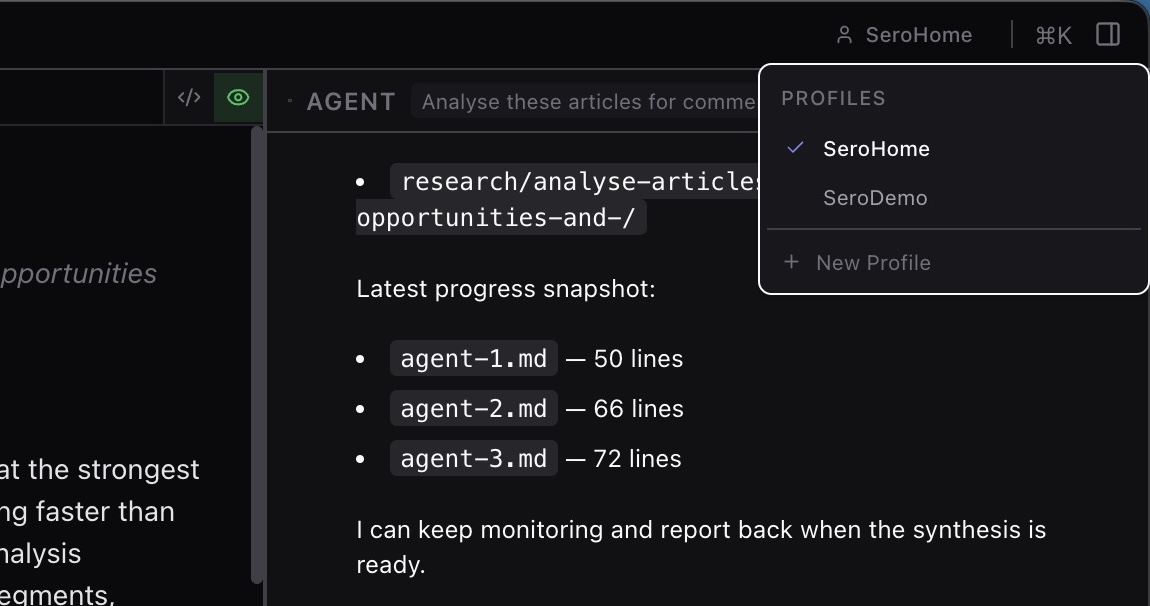
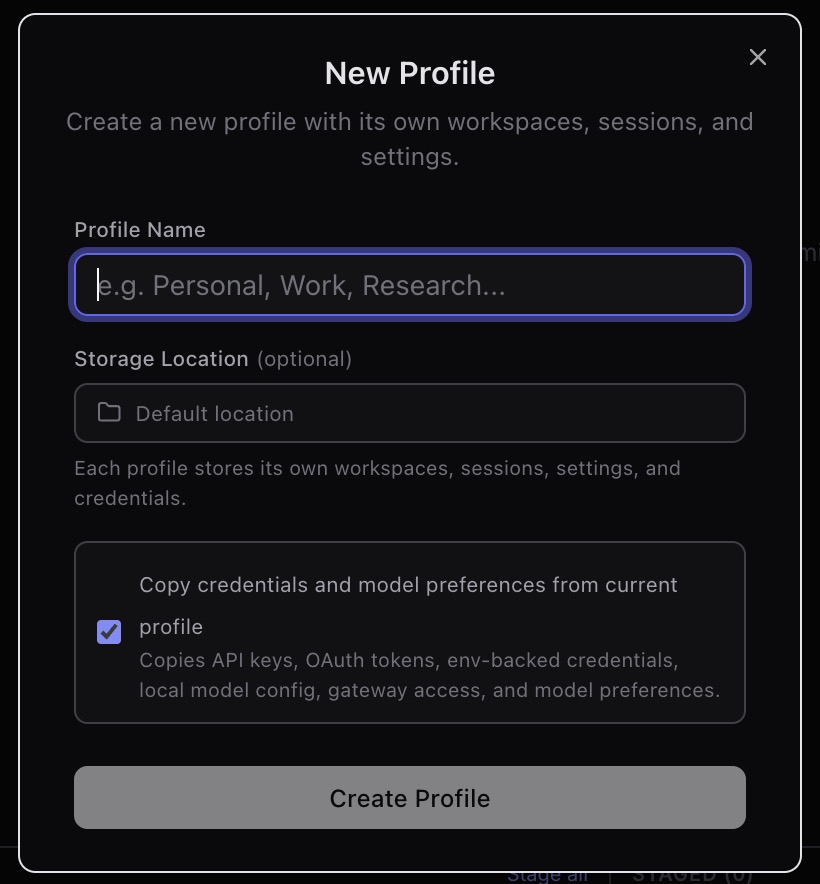
On first launch, Sero asks you to create or choose a profile before entering the
workspace. A profile owns its own <SERO_HOME> and profile-scoped
<SERO_HOME>/agent/ directory for settings, auth, workspaces, layout, sessions,
and local model configuration.
Use profiles to separate local working environments such as Work and Personal. They separate local state, but they are not a cryptographic security boundary.
For the complete profile flow, custom locations, restart-on-switch behavior, transferable credentials, deletion semantics, and redaction checklist, see Profiles and Onboarding.
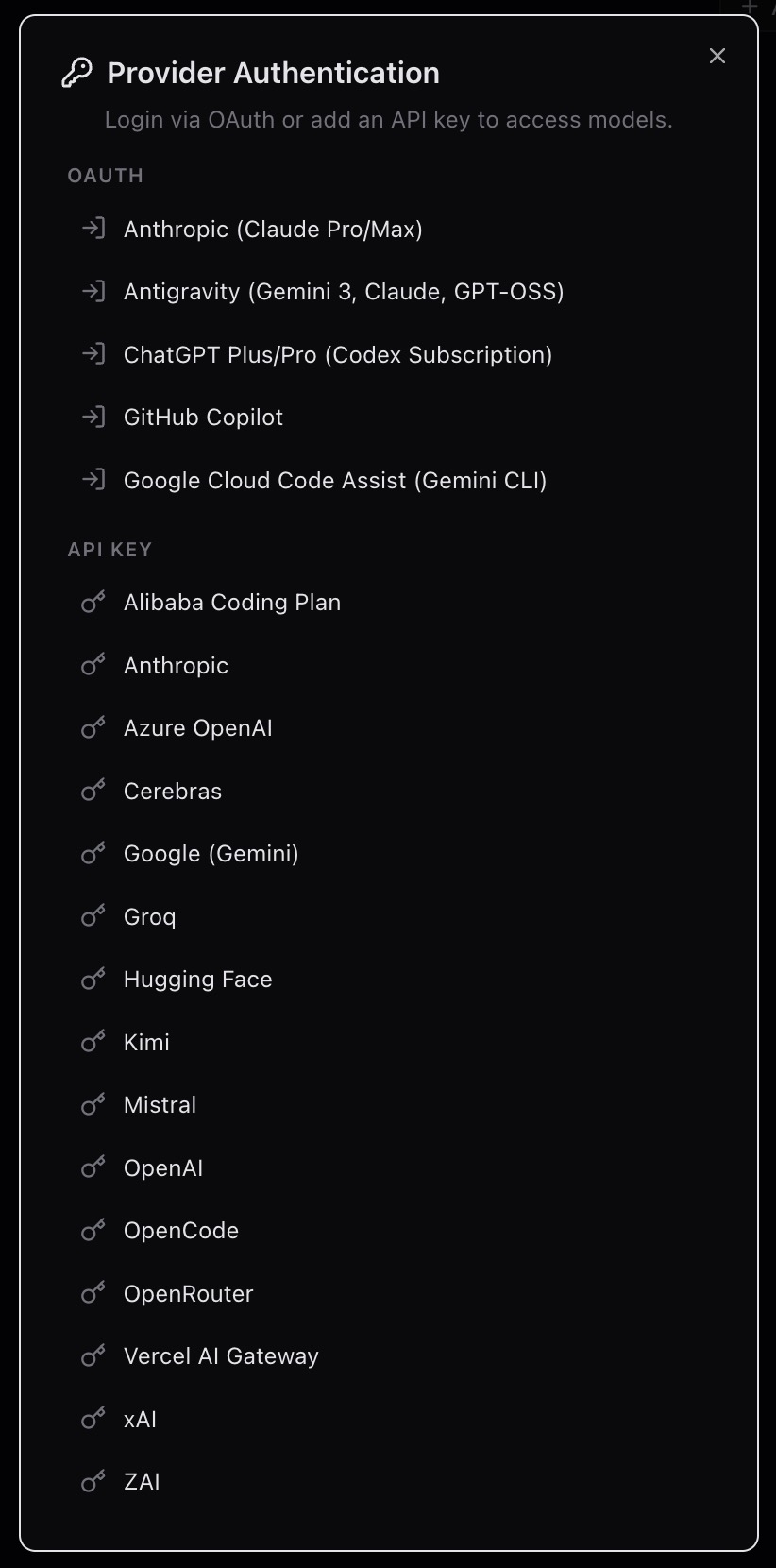
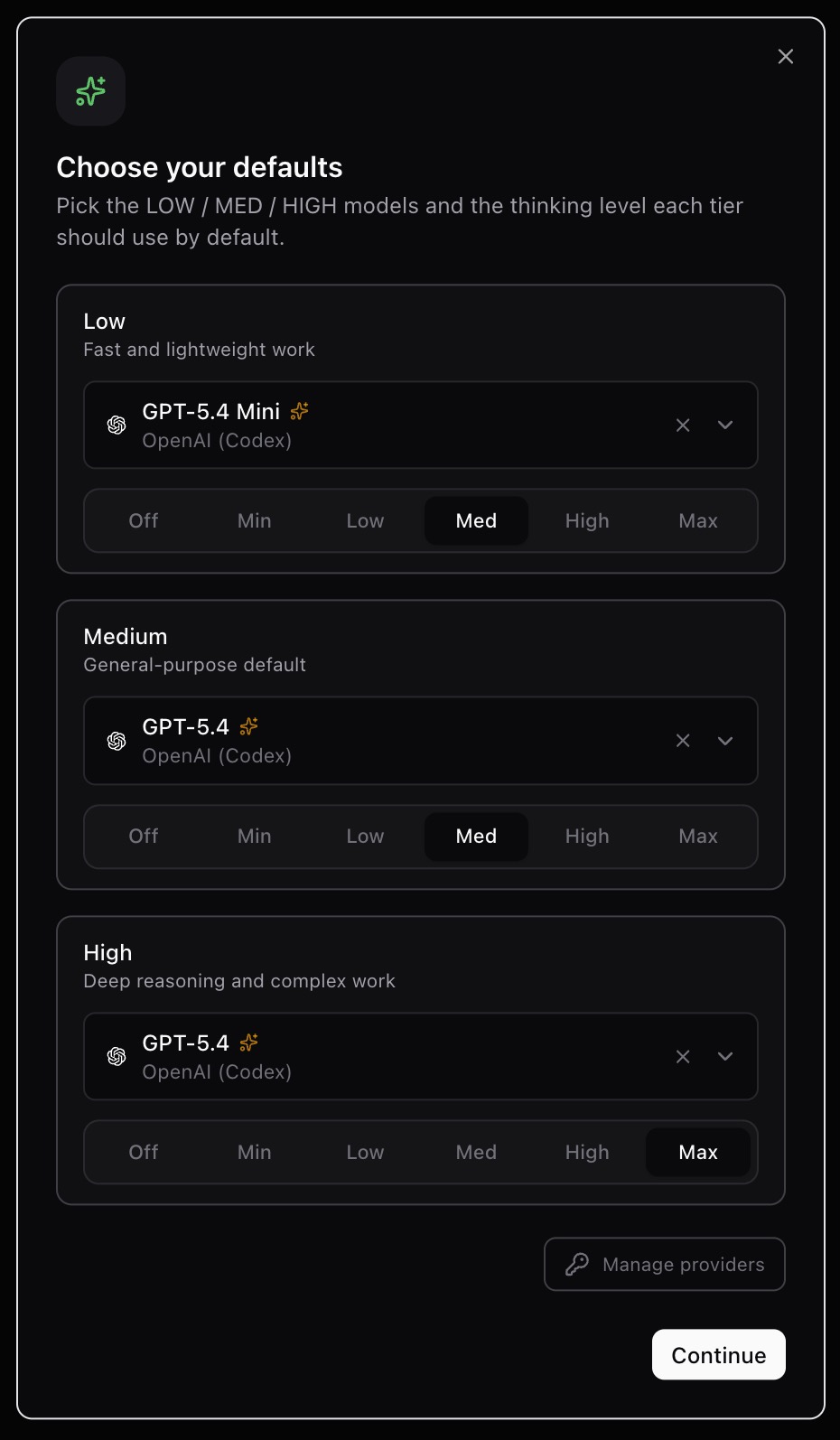
After the profile exists, onboarding checks whether at least one model provider is available, then asks you to choose LOW, MED, and HIGH model defaults. For the provider catalog and tier behavior, see Models and Providers.
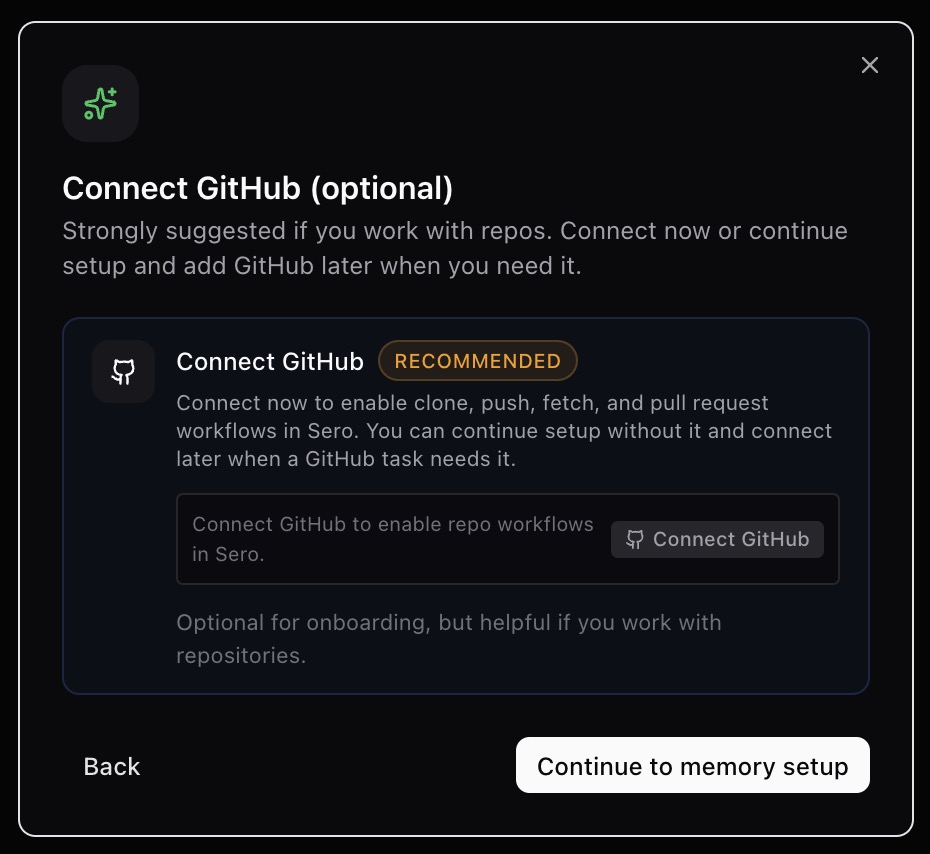
GitHub connection is optional during onboarding, but recommended if you work with repositories. Connecting it enables repository workflows such as clone, fetch, push, and pull-request-related actions from Sero.
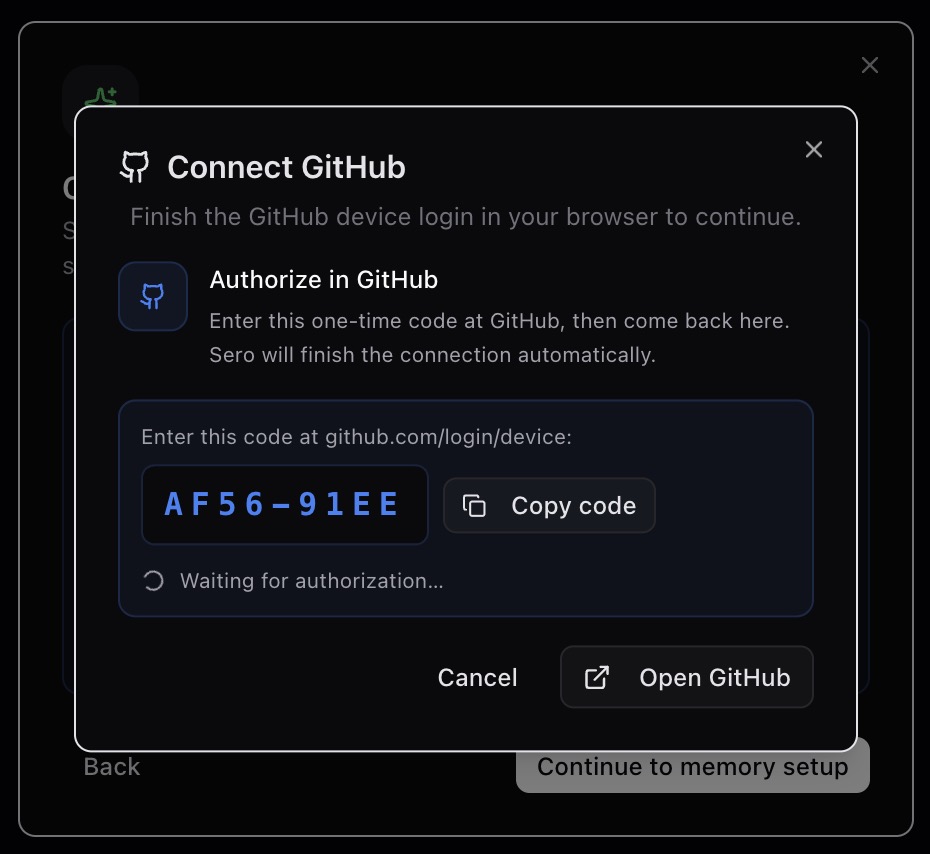
GitHub uses a browser-based device login. Copy or open the one-time code flow, finish authorization in GitHub, and return to Sero; the connection completes automatically when the device flow succeeds.
Shell regions
The desktop shell has these regions:
- Title bar — window controls, back/forward navigation, current app context, pinned app shortcuts, and shell actions.
- Main sidebar — app switching plus workspace and session navigation.
- Active app area — the central surface for Dashboard, Explorer, and other app UIs.
- Global chat panel — the right-side Pi-backed agent conversation for the focused session.
- Status bar — current workspace/runtime state, related status, and zoom.
The sidebar and chat panel can be collapsed. On macOS, use ⌘B to hide or show
the main sidebar and ⌘L to hide or show the chat panel. On Windows and Linux,
use Ctrl+B and Ctrl+L. Panel sizes and
open/closed state are restored between launches for the active profile.
The title bar and status bar stay a fixed size on screen no matter how far you zoom the app content in or out.
Back and forward
Use the back and forward buttons in the title bar, or ⌘[ / ⌘] (Ctrl+[ /
Ctrl+] on other platforms), to move through recently visited apps and the pages
inside them. The button names where it lands, for example
"Back to Sero Orchestrator · FroggerNeon". Opening a Workflow or a Room from
Architect, and choosing another workspace, each count as one step, so a single
Back returns to the page you left.
Pinned shortcuts
Star an app from the title bar breadcrumb to pin it as an icon shortcut in the title bar, up to 8 at a time. Click the star again, or use the command menu, to unpin it.
Zoom
Use ⌘+ / ⌘- / ⌘0 (Ctrl+ equivalents elsewhere) or the zoom control in
the status bar to zoom the active app in, out, or back to 100%. The title bar
and status bar stay the same physical size at any zoom level.
Apps: Dashboard, Agent Board, and Explorer
Sero starts with core built-in apps:
- Dashboard — a home surface for workspace/app summaries and widgets. See Dashboard and Widgets for adding, moving, and resizing widgets.
- Agent Board — a profile-wide board of all agent work across workspaces, in four columns: Backlog, Active, Needs Attention, and Finished. Cards show live progress, branch and PR chips, and token/cost stats; questions and approvals can be answered directly on the card. Clicking a card jumps to the owning workspace.
- Use a card's actions menu to archive it from any column. If work is running, Sero warns you before hiding it. You can stop and archive a live session, or open a Workflow or Room to stop it there. Archiving alone does not stop work. Archived work stays off the board even if that run or Room later needs your input. The Archive tab lets you search, restore, or delete archived cards. Delete removes only the card from Sero's board; it never deletes its source item. Deleted cards stay off the board after refresh. Restore is available while the source item can still appear on the board. A recurring Workflow gets a new board card for each new run, even if an earlier run was archived or deleted.
- Explorer — the project workspace surface for files, editors, previews, diffs, and terminal-related work.
Use the sidebar to switch between built-in apps and pinned or discovered apps. Explorer is central to development workflows, but this page only covers the workspace mental model. For file tree, editor, terminal, browser, and dev-server surfaces, see Explorer Workspace.
Workspaces and sessions
Workspaces are the main organizing unit for project work. The sidebar shows registered workspaces and the sessions that belong to them.
In the session tree you can expect to:
- return to a registered workspace
- create or resume agent sessions under that workspace
- search sessions by session name or first message
- keep project conversations separate instead of mixing all history together
The workspace registry is profile-scoped local state. It is not browser storage and it is restored when you relaunch Sero with that profile.
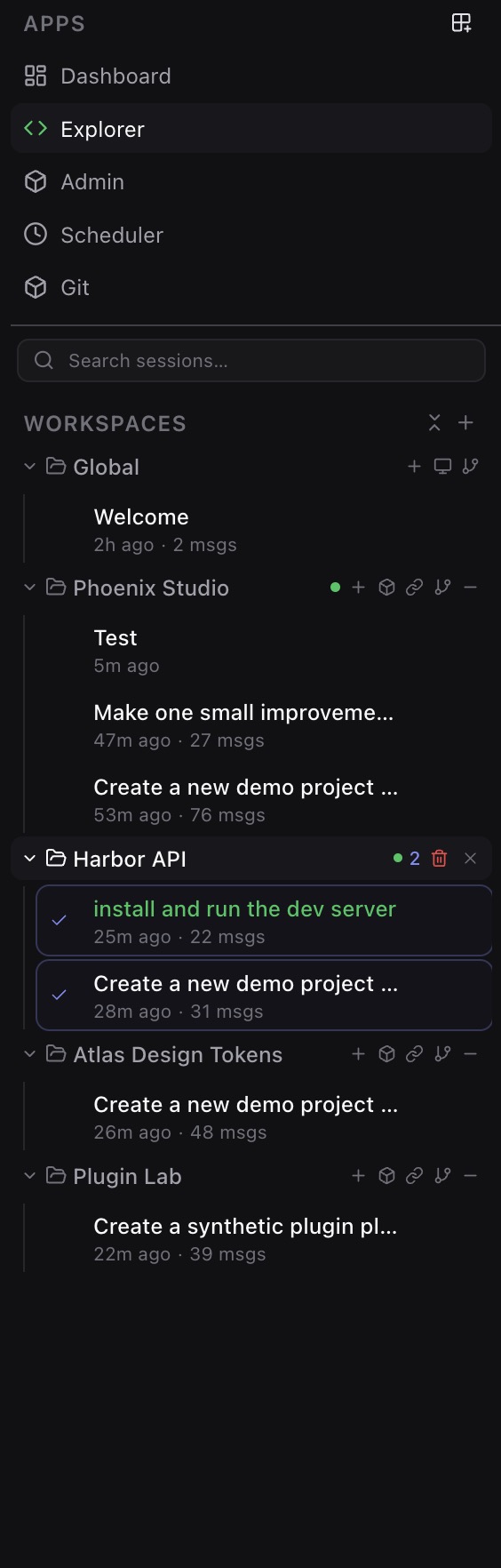
Adding a workspace
The + button next to the workspace list offers three ways to start:
- Create New — makes an empty workspace. After it is created, Sero offers to link it to a Git repository (create a new one on GitHub, or connect an existing one).
- Clone Repository — paste a Git URL and Sero creates a workspace and pulls the repository's files into it in one step. The workspace name is filled in from the URL and can be edited. Private repositories need GitHub sign-in; if a clone fails for that reason, Sero offers to sign in and retry.
- Import Existing — register a folder that already exists on your machine.
Linking a repository to an existing workspace
Open a workspace's Git action (the branch icon on hover) to link it to a repository:
- If the workspace is empty, its files are fetched and checked out automatically.
- If the workspace already has files, Sero does not overwrite them silently. It tells you nothing was imported and offers a choice: Import files (Sero proceeds only when it can preserve existing files and Git history) or Just link (record the remote only).
Global chat mental model
The chat panel is global to the shell, not tied to one app view. You can switch from Dashboard to Explorer or another app while keeping the focused agent session available on the right.
A session is the unit of agent history and lifecycle. When you select a session, Sero opens or focuses the Pi-backed agent session, loads history when available, and keeps new prompts associated with that session.
Useful habits:
- Create separate sessions for separate tasks.
- Resume an existing session when the history matters.
- Press
⌘Lon macOS orCtrl+Lon Windows and Linux to collapse the chat panel. - Keep important current context in the prompt; memory and history are helpful, but not a guarantee that every detail is included in every turn.
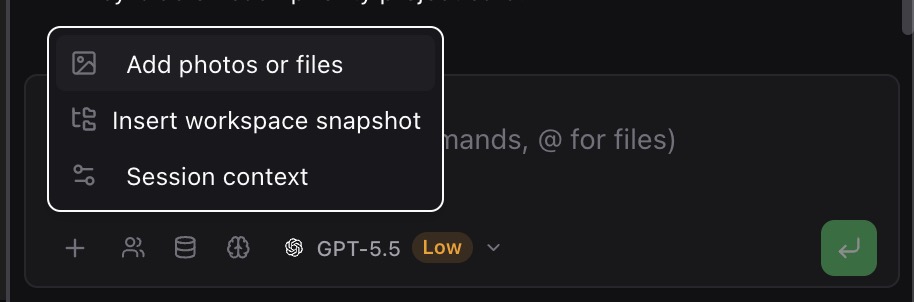
For detailed attachment behavior, model controls, prompt steering, abort states, queued follow-ups, context presets, workspace snapshots, slash commands, and voice input, see Agent Sessions and Context.
When the agent writes a file, its tool card shows the path and a live status. The card does not show each content delta by default. If the same file is open in an Explorer tab, its content streams there.
The chat panel stays available across app switches so the current agent session can remain in view while you inspect files, plugins, or settings.
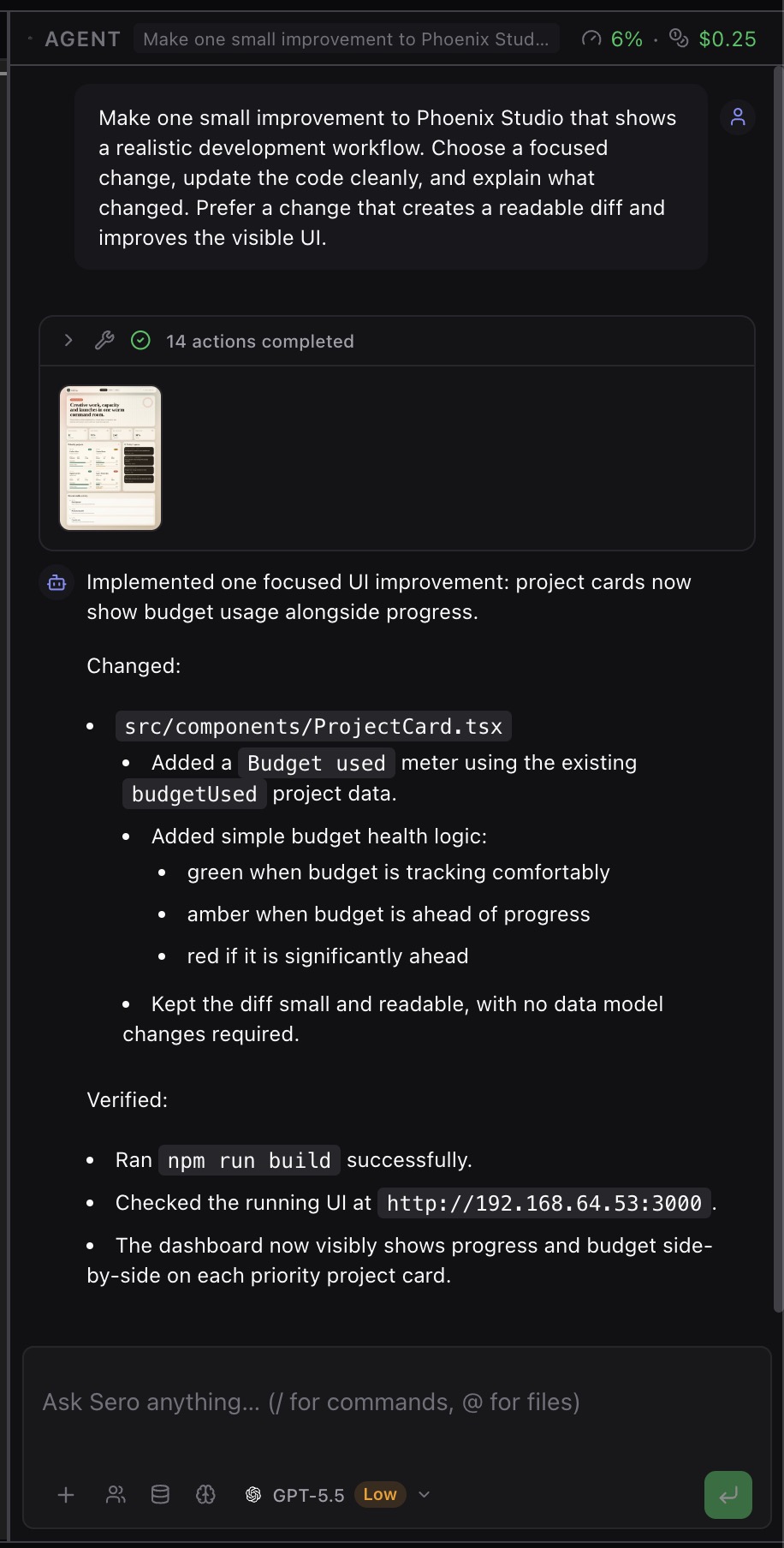
The chat menu collects session-level actions and controls that do not need to be visible in the main composer all the time.
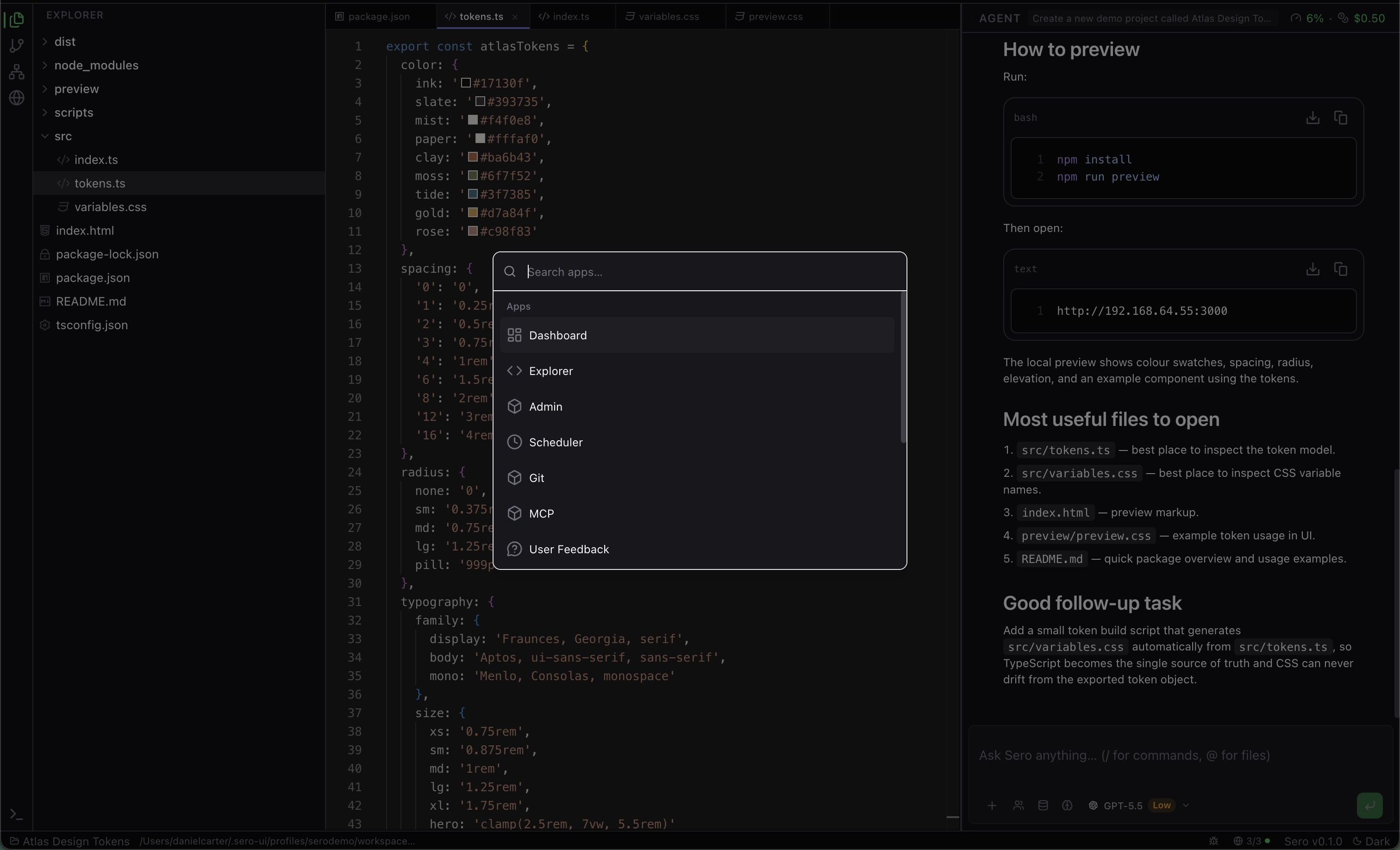
Command menu
Use the command menu as a quick navigation and shell-actions palette. The current public-safe mental model is:
- open registered apps
- connect a remote device when that workflow is enabled
- browse or adjust theme actions
Use ⌘K on macOS or Ctrl+K on Windows and Linux. Do not treat the command menu as a complete catalog
of agent slash commands or every possible action in Sero.
Layout persistence
Sero saves shell preferences to profile-scoped local files. The restored state can include things like:
- sidebar and chat open/closed state
- sidebar and chat panel sizes
- active app, workspace, and session
- theme-related choices
- dashboard widget layout and browser-related layout state
If a layout looks wrong, switch apps or close and open the affected panel. If the problem continues, restart Sero with the same profile.