
Scheduler and Reminders
Sero's Scheduler is a built-in plugin (@sero-ai/plugin-cron) for simple
automations: recurring agent prompts, one-time reminders, and recurring
reminders. It is useful for lightweight checks such as "summarize this demo inbox
every weekday" or "remind me to review this synthetic plan tomorrow." Source
checked: plugins/sero-cron-plugin/package.json and README. See the
Plugin Catalog for the built-in plugin inventory.
Scheduler is local automation. It does not guarantee delivery and does not replace a calendar, monitoring service, or notification service.
Jobs vs reminders
Scheduler has two related concepts:
- Cron jobs are recurring agent prompts. They run from a cron expression and send a configured prompt to the agent when they fire.
- Reminders are notification-first items. They can be one-time or recurring, and currently deliver through desktop notifications.
Use a cron job when you want Sero to ask the agent to do something on a schedule. Use a reminder when you want Sero to notify you about something without making it an agent task.
Synthetic examples:
Avoid scheduling prompts that mutate real files, send messages, publish changes, or depend on exact delivery time unless you have tested that workflow carefully.
Where you interact with Scheduler
You can use Scheduler from a few surfaces:
- Scheduler app — the main visual surface for jobs, reminders, history, and notification settings.
- Scheduler dashboard widget — a compact dashboard summary labeled
Scheduler. The widget id is
scheduler-status; the component isCronWidget. /croncommand — a session command for turning the scheduler on or off or checking status.- Agent tools —
current_time,cron, andreminder.
The app's main tabs are Reminders, Jobs, Workflows, and History. The app opens the Reminders tab and includes a top status area for scheduler state, autostart, and notification settings.
The widget can show whether the scheduler is active or paused, counts for jobs and reminders, a few upcoming items, and recent job-result dots. Treat widget countdowns as a quick summary, not a full scheduling explanation.
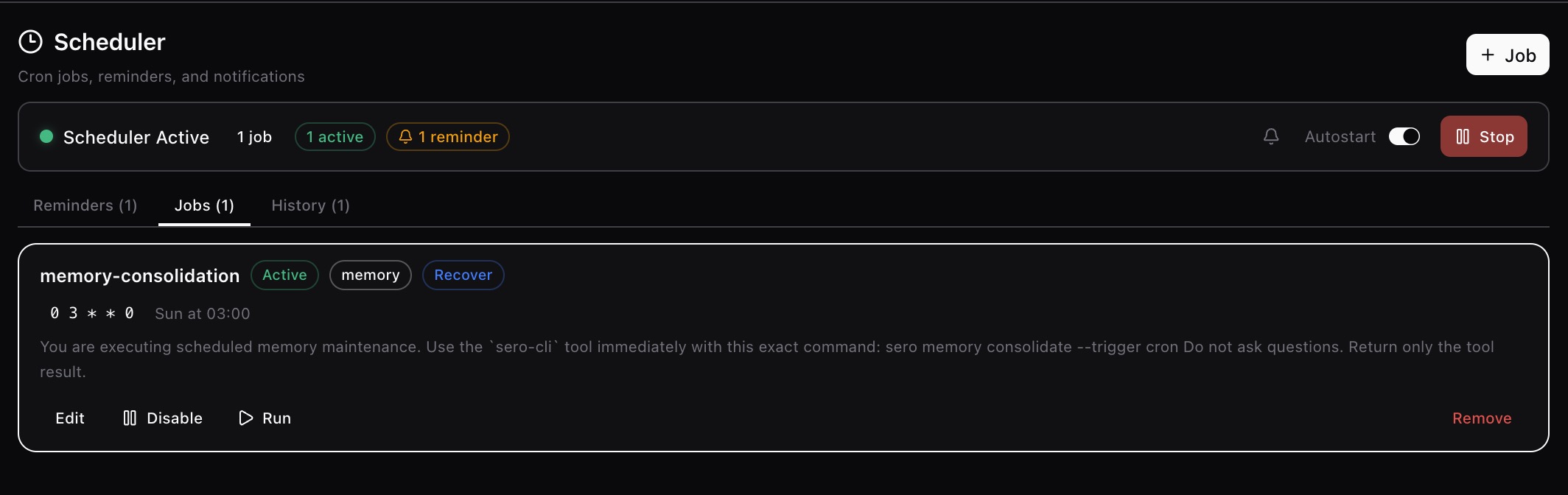
The Jobs view is where recurring agent prompts are listed and reviewed.
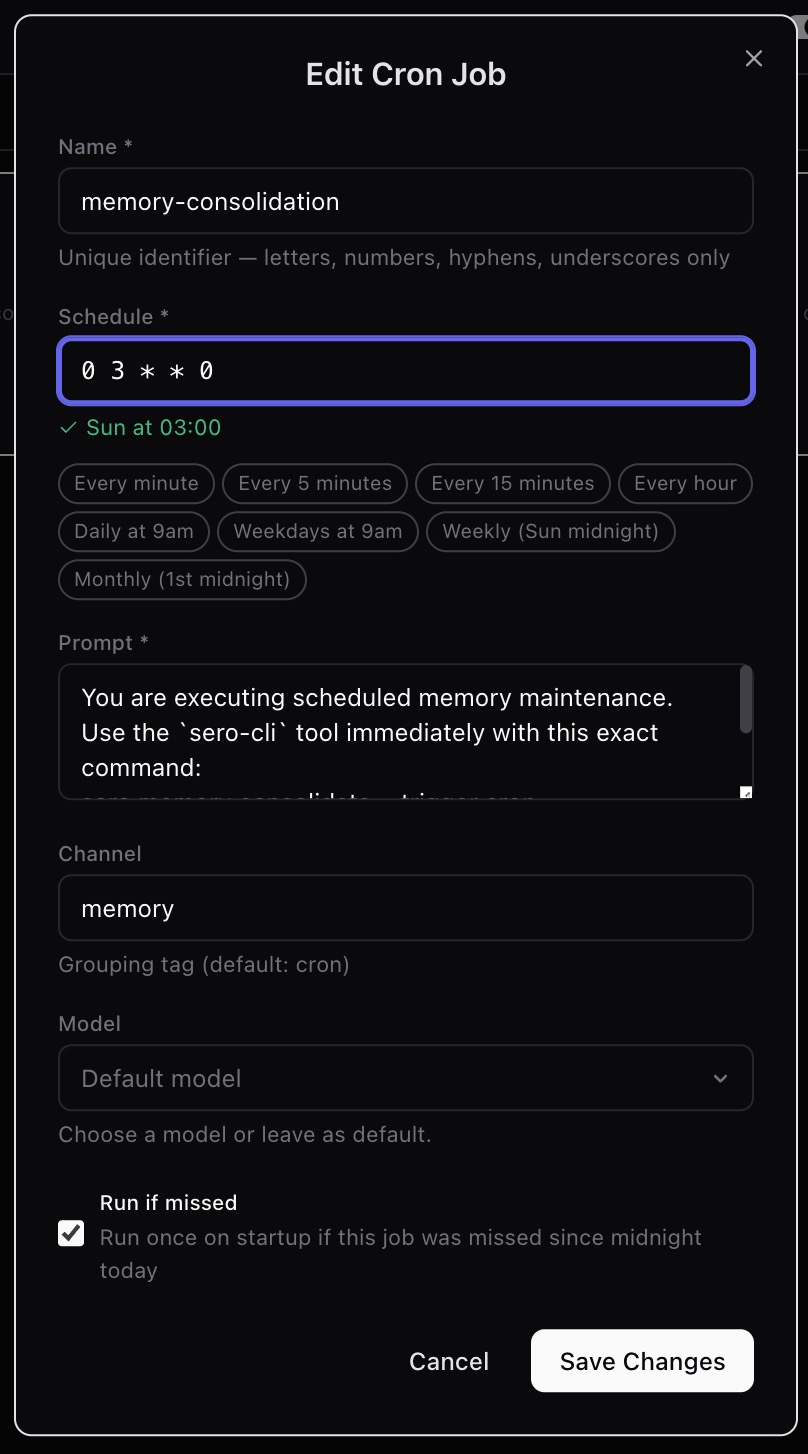
The editor view is where schedule, prompt, model, and missed-run behavior become explicit. Review these fields carefully before enabling a job.
Scheduled Orchestrator Workflows
The Workflows tab lists the active workspace's Orchestrator Workflows that run on a schedule, plus Workflows with a pending snoozed retry. Workflow cron schedules use UTC. Workflows are created and managed in the Orchestrator app. This tab is a window into them:
- Edit schedule changes the Workflow's cron schedule (evaluated in UTC).
- Pause / Resume stops or re-arms only the schedule. A Workflow that also runs on events (shown with an Events badge) keeps firing on those events while its schedule is paused.
- Open in Orchestrator jumps to the Workflow's details.
A Workflow delayed from an uncommitted-changes confirmation shows a Snoozed badge and the retry time. Snoozing delays the pending Orchestrator run; it does not change the Workflow's cron schedule. A manually snoozed event-only Workflow also appears here as a one-off retry without schedule-edit controls. Manage the Workflow itself in Orchestrator.
A schedule that has reached its run limit shows Run limit reached and can no longer be edited or resumed — restart the Workflow in Orchestrator to run it again.
Workflow schedules are fired by Orchestrator, not by the cron scheduler — they run even when the scheduler here is stopped.
Start, stop, and check status with /cron
The Scheduler plugin registers the /cron command.
Supported command arguments are:
/cron on— start the scheduler/cron off— stop the scheduler/cron status— show scheduler status
The command also accepts start and stop as aliases for on and off.
Examples:
The scheduler is a plugin-level runtime for the current Sero process. Do not assume each chat session owns a separate independent scheduler.
Use current_time before relative scheduling
The current_time tool returns current ISO time, local time, timezone offset,
and Unix time. It exists so the agent can resolve relative wording such as
"tomorrow morning" or "in 45 minutes" without guessing your current clock.
When you ask for a relative reminder or job, it is safest to ask the agent to
check current_time first:
This is especially useful near midnight, during travel, or when timezone context matters.
Cron jobs with the cron tool
The cron tool manages recurring agent jobs.
Supported actions are:
listaddupdateremoveenabledisablerun
Adding a job requires a name, schedule, and prompt. Updating a job uses
its name plus the fields you want to change, such as schedule, prompt,
channel, model, or run_if_missed.
Example prompts:
The run action triggers a transient background session immediately. It is
background/asynchronous: do not expect the command to block until the job is
finished or to reuse your visible chat session.
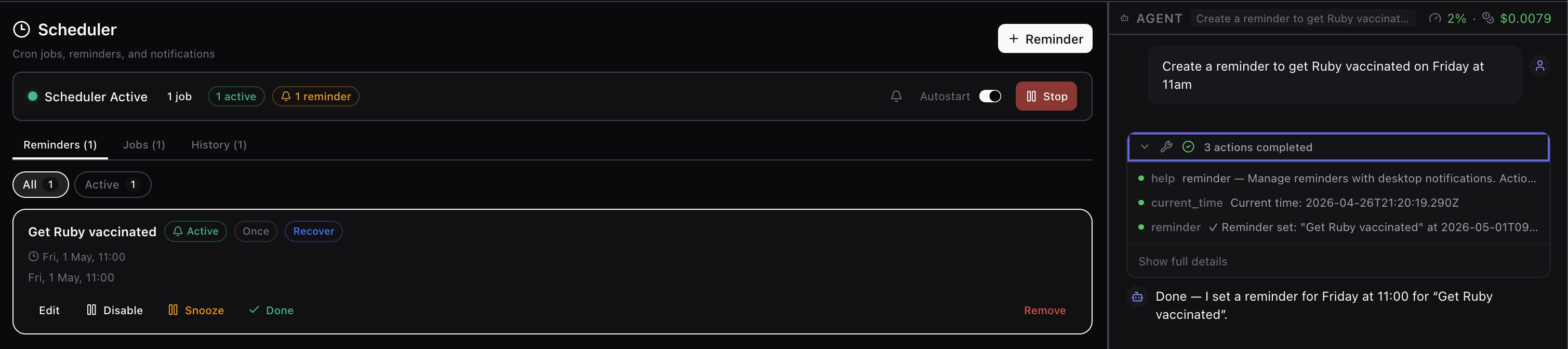
Reminders with the reminder tool
The reminder tool manages one-time and recurring reminders.
Supported actions are:
listaddupdateremovesnoozecompleteenabledisable
Adding a reminder requires a title plus either:
fire_atfor a one-time reminder, orschedulefor a recurring reminder.
Updating, removing, snoozing, completing, enabling, or disabling a reminder uses
its saved id plus the fields you want to change. Reminders can also include
notes, a channel, type, and optional recover_if_missed flag. Status is saved
state, not a field you set directly through the tool. The implemented
reminder types are one-time (once) and recurring (recurring).
Example prompts:
Snooze uses snooze_minutes; the default is 15 minutes. The special value -1
is documented by the tool/UI as "tomorrow 9am".
Notifications
Reminder notifications are emitted through Sero's desktop notification path and routed by the host to macOS notifications. Cron job completion notifications use the same path and can include success/failure, duration, and optional sound.
The Scheduler UI includes notification settings. Notification sound is
user-configurable, with options such as Glass, Hero, and Ping, and sound
can be turned off.
Important caveats:
- Desktop notifications are not guaranteed delivery.
- Sero and the host notification path need to be available.
- macOS notification permissions and focus modes can affect what you see.
- Exact notification timing and presentation should be verified on your machine.
- Email reminders are not implemented. The shared types include an
emailpath, but the shipped reminder tool currently supportsnotificationonly; email falls back to desktop notification with a warning in notifier logic.
Do not use Scheduler as the only alarm for safety-critical, financial, medical, or production incident workflows.
Missed-run recovery
Scheduler has conservative missed-run recovery, but it is opt-in per item:
- cron jobs use
run_if_missed - reminders use
recover_if_missed
Recovery only looks at the window from the last scheduler shutdown or today's midnight, whichever is later. Very short windows under two minutes are skipped. Missed cron jobs are recovered only if they would have matched during that window and are not disabled. Missed reminders are recovered only when recovery is explicitly enabled and the reminder is not completed or disabled.
On startup, recovered cron jobs are executed in the background. Recovered reminders trigger a notification only.
This is not a full catch-up system for long outages, multi-day downtime, or every possible missed schedule. It is intentionally conservative.
State and storage
Scheduler state is stored as app state for the built-in cron plugin. When
SERO_HOME is available, the state file resolves to the active profile root:
For the default profile, <SERO_HOME> is usually ~/.sero-ui/. If SERO_HOME
is not present, the plugin falls back to a workspace-relative path:
The app manifest advertises the state file as:
State includes jobs, reminders, scheduler active state, autostart,
lastTickMinute, lastSchedulerShutdown, recent run results, and notification
settings. Writes are serialized and persisted atomically with a temporary-file
rename.
Treat this file as local app state. It may include reminder titles, notes, job prompts, schedules, and timestamps.
Privacy and safety
Cron jobs send their configured prompts to the agent when they run. Depending on your selected model/provider and local setup, prompt content and resulting tool use may leave the local machine.
Practical safety habits:
- Keep scheduled prompts narrow and low-risk.
- Use synthetic examples when testing.
- Avoid secrets, access tokens, private customer data, or sensitive personal details in job prompts and reminder notes.
- Disable or remove jobs you no longer need.
- Prefer reminders over cron jobs when no agent work is required.
- Review scheduled jobs before switching projects, profiles, or providers.
Troubleshooting and limits
A job or reminder did not fire
Check /cron status, confirm the scheduler is active, and verify the job or
reminder is enabled. Also check that the cron expression or fire_at time is
what you intended. If you used relative time, ask the agent to use
current_time and inspect the saved schedule.
A notification did not appear
Check macOS notification permissions, focus modes, whether Sero is running, and Scheduler notification settings. Delivery through desktop notifications is best effort and should not be treated as guaranteed.
Email did not send
Email reminders are not shipped. Use the notification channel only.
Run-now did not show an immediate result
The cron run action starts a transient background session and records history
asynchronously. It does not block until completion and does not run inside your
visible chat session.
Recovery did not catch up an item
Confirm run_if_missed or recover_if_missed was enabled before the miss,
check that the item was not disabled or completed, and remember that recovery is
same-day/conservative. It is not designed to catch up long outages.
Duplicate or stale scheduler state
The scheduler is a module-level singleton, not multiple independent schedulers
per chat session. On startup, stale schedulerActive state can be corrected if
the scheduler is not actually running. Restart Sero and check /cron status if
state looks inconsistent.
Cron expressions are easy to get wrong
Use simple schedules first, verify with disposable examples, and ask the agent to explain the expression before saving it. If exact timing matters, test it before relying on it.