
User Feedback
User Feedback lets an agent stop and ask for a decision. It provides a compact Chat question, a step-by-step questionnaire, and an open-ended interview.
You do not install or configure this built-in plugin. Its tools are available to agent sessions, but the manifest sets bridgeTools to false. Other plugin apps cannot call them through the app tool bridge.
Answer a Chat question
A single question appears in Chat. Select one of the choices, or use the custom answer control to enter your own response. Your answer returns to the waiting tool call, and the agent can continue.
Read the complete question before you answer. If it asks for an irreversible change, choose a safe option or enter a narrower instruction. Closing the card cancels the question; it does not approve a default choice.
Complete a questionnaire
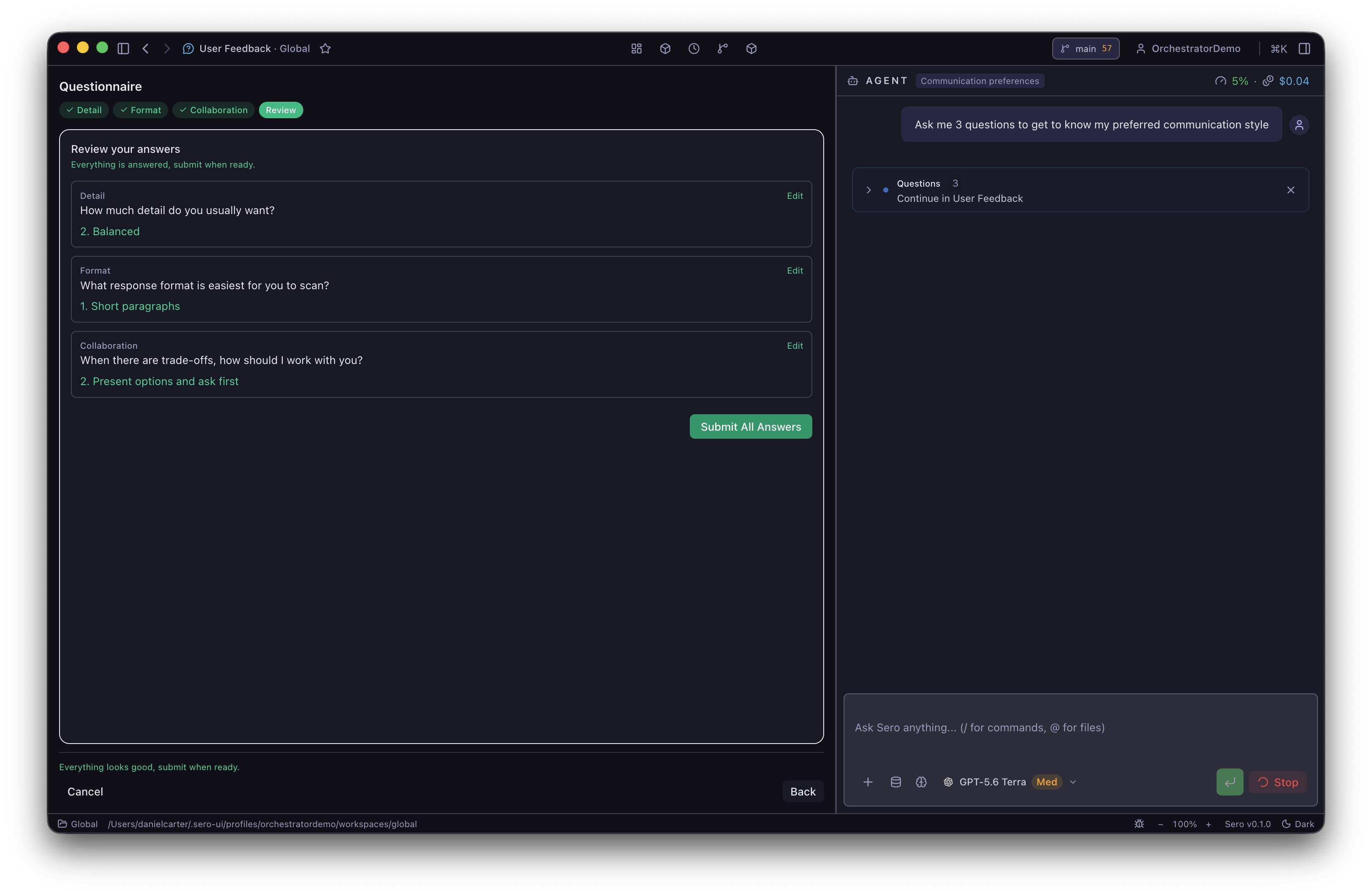
Questionnaires appear in the User Feedback app, not in the Chat question card.
- Open User Feedback when the agent says that a questionnaire is ready.
- Select an answer for the first step. Some choices can open a nested question.
- Use Next, Back, or the named step buttons to move through the form.
- Use Skip when you do not want to answer a question.
- On Review, inspect each answer. Select Edit to return to a step.
- Select Submit All Answers.
A questionnaire can use single-choice or multi-select questions. It can also allow a custom text answer. You can submit partial answers, but you must answer at least one question. Select Cancel to return a cancelled result to the agent.
The app keeps multiple pending questionnaires and interviews in arrival order. After you submit or cancel the first form, it shows the next one.
MCP servers ask their questions in the same questionnaire. See Answer questions from a server.
Use an interview for a specification
An interview shows all open-ended questions on one page. Enter one or more answers, then select Submit. You can leave questions empty. The agent can use your answers to ask another set of questions.
To start the built-in specification flow, enter this command in Chat:
Use a path in the active workspace, for example /interview docs/checkout-spec.md. The command asks the agent to continue the interview and write the final specification to that path. Review the generated file before you use it as an implementation plan.
Pending questions and recovery
Pending questions are held in Sero's main process for up to 10 minutes. They are not durable across a Sero restart. If a form disappears before you answer it, ask the agent to send it again.
The profile state file .sero/apps/userfeedback/state.json records only the last activity time after a submitted questionnaire or interview. It does not store the question text or your answers. The active agent session receives the answers as the tool result and can retain them in its session history.
If the User Feedback app shows its idle screen while an agent waits, return to Chat for a single question. For a questionnaire or interview, reopen the app. If it is still empty, cancel the waiting tool call and ask the agent to repeat the questions.
Answers can contain private project decisions. Remove private text before you share a session transcript or screenshot.